
Device Connectors Springfield MO
Device Connectors Springfield MO

Key Highlights
- Device connectors include several connector types used for charging, data transfer, audio, and video.
- A usb connector guide helps you tell USB-A, USB-B, Micro, Mini, and USB-C apart.
- Common local needs often involve mobile devices, printers, digital cameras, and external storage.
- Audio setups often rely on the audio jack, RCA, and XLR connections.
- Video links usually center on an hdmi cable, DisplayPort, or older VGA options.
- Choosing the right fit improves compatibility, signal quality, and safe everyday use.
Introduction
If you use phones, printers, laptops, cameras, or storage gear, you deal with device connectors every day. Still, many people are unsure which connector types fit their equipment or why one usb connector works while another does not. In Springfield, MO, that can matter for home setups, office systems, and commercial equipment. This guide gives you a clear, simple look at common connectors, what they do, and how to choose the right one for your devices.
Understanding Device Connectors in Springfield, MO
Device connectors are the physical links that let electronic devices share power, pass signals, and handle data transfer. You see them on desktop computers, printers, cameras, TVs, and portable gear. Different connector types are built for different jobs, so shape and function matter.
Around Springfield, MO, people commonly use device connectors for digital cameras, mobile gear, office peripherals, and storage devices. Knowing the basics helps you avoid mismatched cables and choose parts that support the speed, fit, and use your setup needs.
Overview of Device Connector Functions and Importance
At the most basic level, connectors create a working path between devices. Some are made for data transfer, some for power supply, and some handle audio or digital video. That is why connector types are not interchangeable, even when they look similar at first glance.
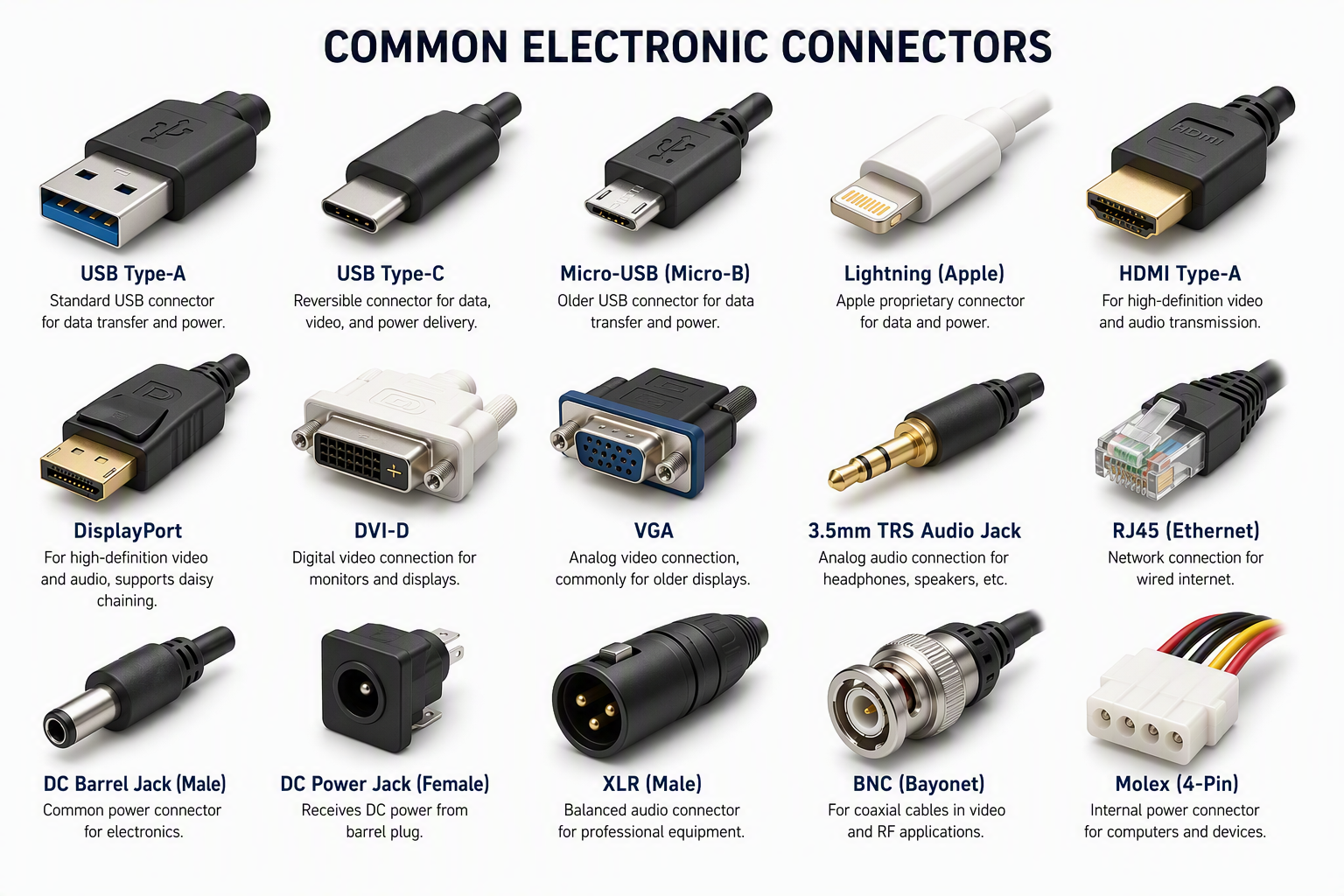
The most common types include USB for charging and peripherals, audio connectors for sound equipment, video connectors for displays, and power connectors for devices that need electricity. USB-A is often found on host devices like computers and hubs. USB-B is common on printers and certain cameras. Mini and Micro USB appear on older portable devices, while USB-C supports charging, fast data transfer, and video output.
This matters because the wrong connector can limit speed or prevent a connection entirely. Once you know what each connector is designed to do, selecting the right cable becomes much easier.
Common Applications for Device Connectors Locally
In Springfield, MO, device connectors are used across homes, offices, and commercial applications. People connect mobile devices for charging, printers for daily work, and storage gear for backups. Older and newer electronic devices often need different cable ends, so checking port style is a smart first step.
You will also see connector needs change as new products replace older hardware. USB-C is showing up more often, while Micro USB, Mini USB, and Type-B still remain in many setups. External hard drives, cameras, and control units can all depend on the correct cable type.
Common local uses include:
- Charging and syncing phones, tablets, and other mobile devices
- Connecting printers, PTZ cameras, and office peripherals
- Linking external hard drives and storage devices for file access
- Running audio equipment with audio jack, RCA, or XLR connections
Key Terms and Definitions in Device Connectivity
A few simple terms can make connector selection much easier. Data transmission means moving files or information between devices. Signal integrity refers to how well that information stays clean and stable as it travels through a cable or internal link. This is especially important with higher USB speeds.
You will also hear people talk about usb connector types and types of usb connectors. That usually means the physical shape, such as Type-A, Type-B, Micro-B, Mini-B, or Type-C. Digital video describes video signals sent through modern interfaces such as HDMI or USB-C to HDMI.
Useful definitions include:
- Power connectors: made mainly to deliver electricity
- Signal connectors: carry audio signals or video signals
- Data connectors: move files and device information
- USB connector types: physical USB shapes and formats
- Signal integrity: stable performance during high-speed transfer
These terms give you a practical foundation for the connector categories covered next.
Most Popular Types of Device Connectors
Some connector types appear far more often than others in everyday setups. For many people, the list starts with USB, audio, video, and charging connections. Within USB alone, there are several types of usb connectors, each with a specific shape and purpose.
You may use a usb cable for a printer, phone, or external drive, while an hdmi cable handles a display connection. Extension cables also help when ports are hard to reach. The next sections break down these popular connector families so you can spot them quickly and use them correctly.
USB Connectors (Type-A, Type-B, Micro, Mini, USB-C)
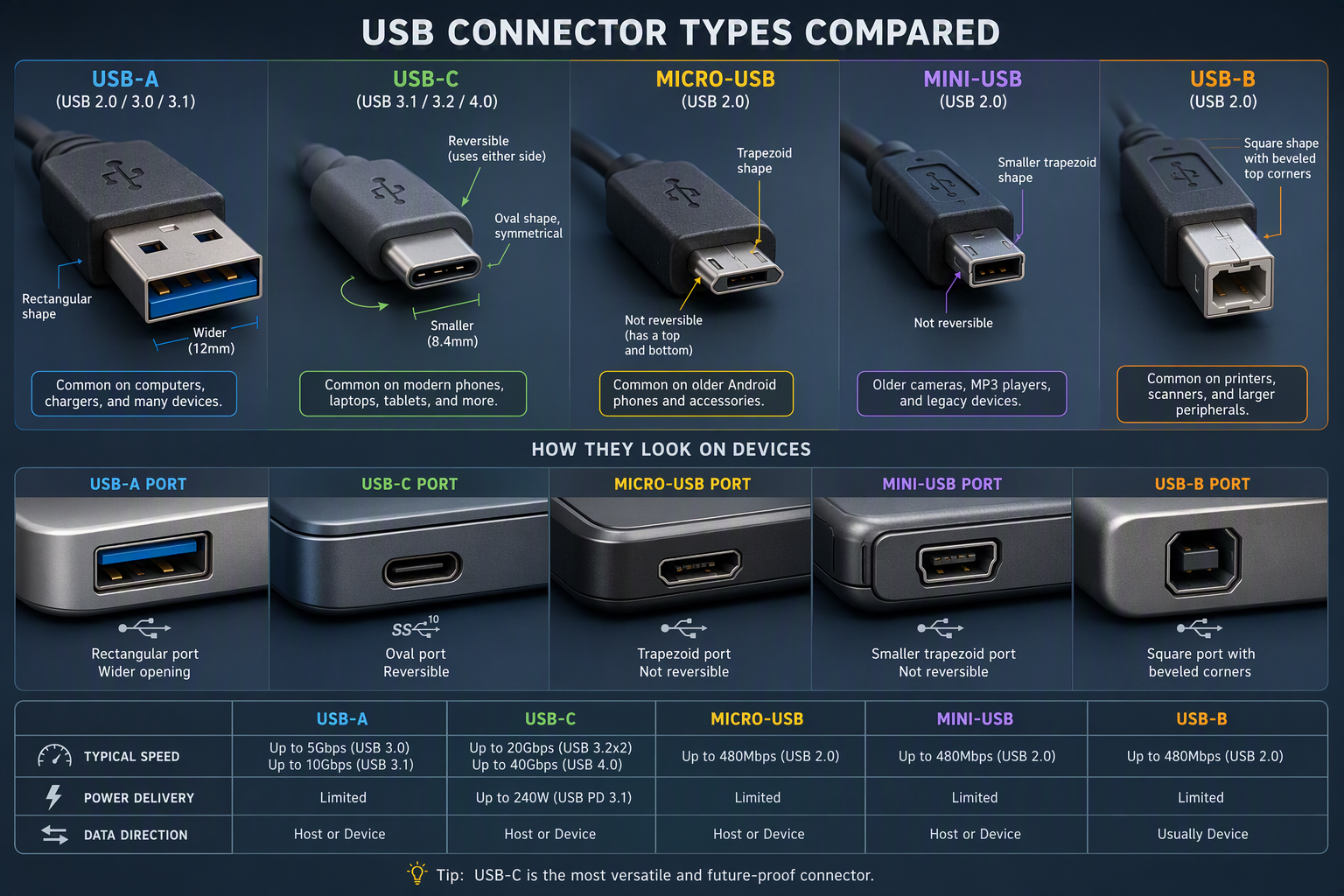
USB stands for universal serial bus, and it is one of the most common types of connection used today. To identify each usb connector, start with the shape. USB-A is flat and rectangular. USB type b is squarer and often used on printers. Mini and Micro are smaller for portable or older devices. USB type c is small, oval, and reversible.
Over time, USB moved from older USB-A and USB-B designs to smaller Mini and Micro styles, then to USB-C. The changes improved convenience, speed, and charging ability. USB-C now supports a wide range of USB standards, video output, and strong power delivery.
| USB Type | Typical Shape and Use |
|---|---|
| USB-A | Flat rectangle; common on computers, TVs, hubs |
| USB-B | Squared design; used on printers and PTZ cameras |
| Mini USB | Small legacy connector; often seen on digital cameras |
| Micro USB | Slim connector; used on phones, tablets, and portable devices |
| USB-C | Reversible oval; supports charging, video, and fast data |
Audio Connectors (3.5mm Jack, RCA, XLR)
For audio equipment, the most common connectors are the 3.5 mm audio jack, RCA, and XLR. Each one serves a different need. A stereo jack is widely used on consumer devices, while RCA connectors often appear on older audio and video systems. XLR connectors are common where a secure, professional-style audio link is needed.
The 3.5 mm format can include standard TRS and trrs connectors. TRS usually carries stereo audio, while TRRS can carry added functions depending on the device. That makes the small audio jack useful for many portable devices and headsets.
Common audio choices include:
- Audio jack for headphones, portable devices, and stereo audio
- RCA connectors for older home audio links
- XLR connectors for secure audio equipment connections
- TRRS connectors where extra contact points are needed
Video Connectors (HDMI, DisplayPort, VGA)
When you need a screen connection, video connector choice matters. HDMI is widely used for digital video on TVs, monitors, and other modern devices. DisplayPort is another digital option, and mini displayport provides a smaller variation for certain systems. VGA is older and usually appears in legacy setups.
Standards and specifications define how these connectors handle resolution, speed, and compatibility. That is why a cable type is not just about plug shape. It also reflects what kind of signal the connection supports and how well it performs with modern hardware.
You will usually see:
- HDMI connectors for common home and office displays
- DisplayPort for digital video connections on some computers
- Mini DisplayPort where a smaller video port is used
- VGA in older equipment that still relies on legacy display links
Power and Charging Connectors
Power and charging connectors are built to supply electricity to devices. Some only handle power supply, while others can combine charging with data functions. USB-C is a strong example because it can support power delivery, high speed data, and even video in the right setup.
This is the easiest way to separate categories: power connectors deliver electricity, signal connectors carry audio or video, and data connectors move files or device information. A single connector can sometimes handle more than one role, but the supported standard still decides what it can actually do.
Common power-related options include:
- USB charger connections for phones and portable gear
- Power connectors designed mainly for electrical supply
- USB-C links with advanced power delivery support
- Combined charging and transfer cables for everyday devices
Identifying Connectors on Your Devices
The fastest way to identify connector types is to look at size, shape, and purpose. A usb connector can be narrow, square, rectangular, or oval depending on the device. Ports on printers, computers, and portable products often give you the first clue about what cable is required.
A simple visual guide also helps you compare the port on the device to the plug on the cable. Once you know the main types of usb connectors, choosing the right match becomes far less confusing.
Visual Guide to Connector Types
Yes, a quick visual guide is one of the easiest ways to identify connector types. You do not need technical training. In most cases, you only need to compare the port shape, overall size, and how the cable end is designed. That makes it easier to sort common usb connector types from audio and video ports.
USB connections are especially easy to recognize once you know the main patterns. USB-A is rectangular, USB-B looks more boxy, Micro and Mini are smaller, and USB-C is rounded and reversible. An hdmi cable has a flat, tapered connector that is wider than USB. Extension cables usually have a female opening on one end.
A simple cheat sheet can include:
- USB-A: flat rectangle
- USB-B: squarer connector for peripherals
- Micro or Mini USB: smaller for compact devices
- USB-C: oval and reversible
- HDMI: wider digital video plug
Markings and Labels to Recognize
Besides shape, markings and labels can help you identify connector types. Some cables and ports are labeled by version or type. A package may list USB 2.0, USB 3.0, USB-C, or a specific cable type. This helps you avoid guessing when several ports seem similar.
You should also check both the device port and the end of the cable. A usb male plug goes into a female port. With usb type b connectors, the squarer shape often signals a printer or similar peripheral. If the hardware needs a panel connection, the product may also mention panel mount or internal header details.
Look for clues such as:
- Printed type names on packaging or cable sleeves
- Port shape on the device itself
- Whether the plug is usb male or female
- Labels showing the cable type or supported USB version
How to Differentiate Signal, Data, and Power Connectors
The easiest way to tell these categories apart is by function. Power connectors mainly provide electricity. Data connectors focus on data transmission between devices. Signal connectors carry audio or video. Some modern ports can handle more than one job, but their supported standard still determines actual use.
For example, a usb device may charge through the same port it uses for syncing files. Even then, it is still helpful to ask what the connection must do first. If the goal is stable file movement at higher rates, signal integrity becomes important. If the need is just charging, power delivery matters more.
Use this quick breakdown:
- Power connectors: built for charging or power supply
- Data connectors: made for file movement and device communication
- Signal connectors: carry audio or video output
- Combo connectors: support multiple tasks under one standard
- Higher-speed links: rely on better signal integrity
Choosing the Right Connector for Your Project
Choosing between connector types starts with one question: what must the connection do? You may need charging, file movement, video output, or a stable link for a peripheral. Once that is clear, the right usb connector or other cable option becomes easier to narrow down.
It also helps to compare device ports, supported standards, and physical fit. Because types of usb connectors vary widely, a project works best when the connector matches both the equipment and the intended use.
Factors to Consider for Electronic Projects
When selecting a connector for electronic devices, focus on purpose first. Do you need data transfer, power supply, or both? That answer shapes the rest of the decision. Connector types that look similar can still perform very differently, especially across USB generations.
You should also think about device size, port shape, and whether the connection is for a host system or a peripheral. Compatible connectors matter because a wrong fit can block the connection even if the cable seems close. Newer standards may also offer faster speeds or more charging capability.
Helpful points to check include:
- Required speed for data transfer
- Needed power supply level
- Physical fit between port and cable
- Whether the devices use compatible connectors
That simple checklist keeps a project practical and easier to complete.
Matching Connectors to Device Specifications
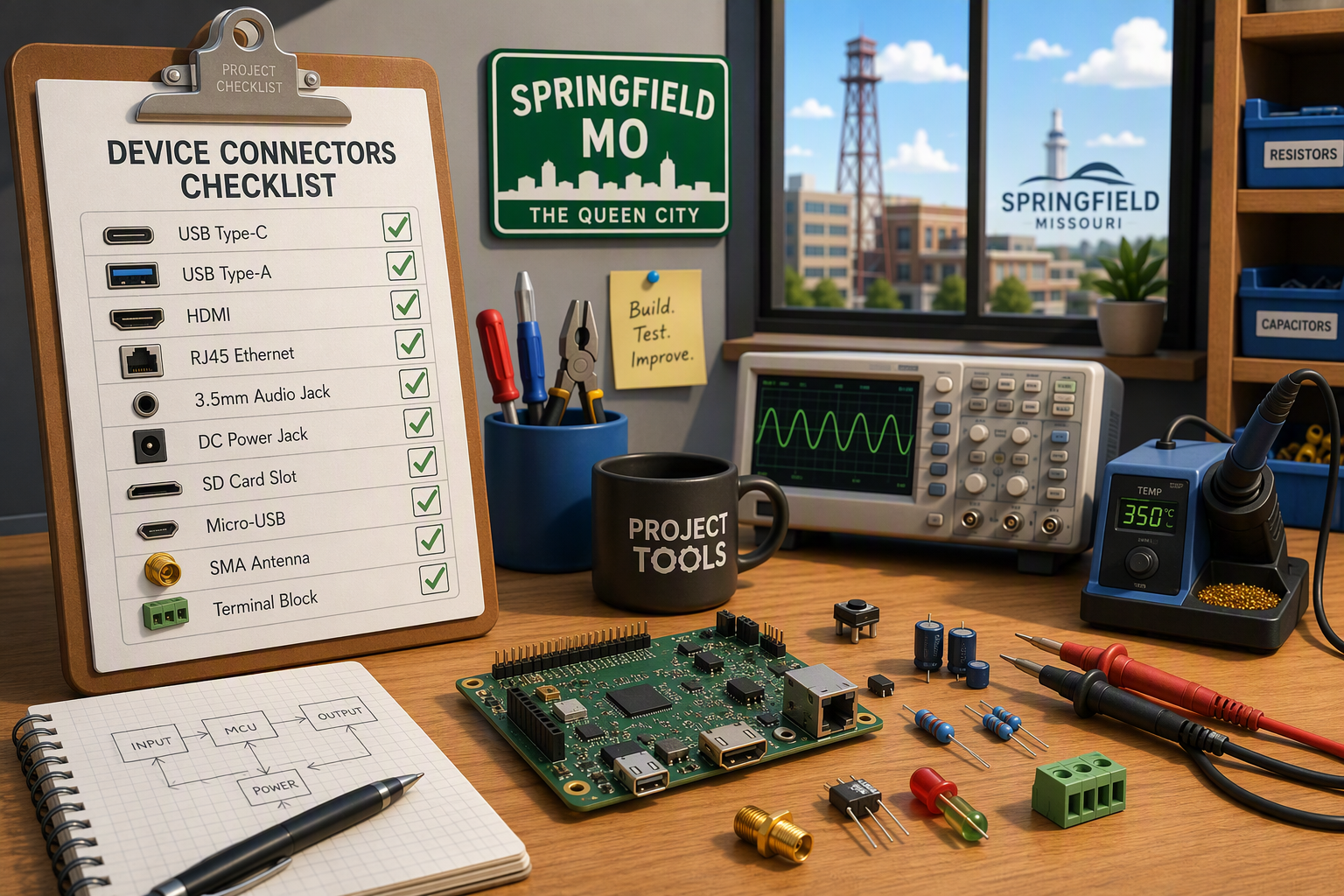
To match device connectors correctly, start with the device specifications. The port shape tells you one part of the answer, but the supported standard tells you the rest. A connector may fit physically while still limiting speed or charging performance. That is why both shape and spec matter.
The host device also plays a role. For example, USB-A often appears on computers and hubs, while USB-B is common on printers and some cameras. USB-C is now used across many modern devices because it supports charging, data, and video under the right conditions. Matching connector types means checking both ends of the link.
Review these points before buying:
- Port shape on the device
- Supported USB version or standard
- Whether the unit is a host device or peripheral
- Required power or transfer function
- Any device specifications listed by the maker
Tips for Selecting Compatible Connectors
A good rule is to choose connectors by confirmed compatibility, not guesswork. Many connector types look close enough to confuse buyers, especially when dealing with older hardware and new products. Start by checking the exact port style and then confirm what the cable must carry.
The next step is choosing the right cable type for the job. Some connections only need charging, while others need transfer support or video output. Extension cables can help with placement, but they still need the same connector match as a standard cable.
Keep these tips in mind:
- Match plug shape to the actual device port
- Confirm the cable type supports the intended task
- Use extension cables only when the end connections still match
- Compare older devices carefully with new products before buying
Installation, Maintenance, and Safety Tips
Correct installation helps connector types last longer and work more reliably. Whether you are using a simple plug connection or fixed socket connectors, the goal is the same: a clean, secure fit without forcing parts together. That reduces wear and lowers the chance of poor performance.
Some setups also use panel mount hardware for a stable connection point. In the sections below, you will see how plugs and sockets differ, how to secure a proper fit, and how basic care supports long-term performance.
Plug vs. Socket Connectors: Uses and Best Practices
A plug is the part that inserts into a port, while socket connectors receive that plug. In simple terms, the plug is usually the cable end and the socket is usually mounted on a device or panel. This difference matters during installation because each side has a different role.
Many electrical connectors follow this same pattern. A standard cable has a male plug and a device-side female socket. In fixed systems, panel mount parts create a stable access point on equipment or enclosures. That makes repeated connection easier and can reduce strain on internal parts.
Best practices include:
- Align the plug carefully before insertion
- Do not force a connector into the wrong socket
- Use panel mount hardware where stable access is needed
- Check that electrical connectors fit the intended device
- Inspect both sides for damage before use
Ensuring Proper Fit and Secure Connections
A proper fit starts with identifying the exact connector on your device. Check the port shape, compare it to the cable end, and confirm the required function. If you need charging and file syncing, the cable must support both. If you only need power, the choice may be simpler.
Secure connections are important because a loose fit can interrupt charging or reduce performance. In higher-speed setups, the wrong or poor-quality usb cable may also affect data transfer speeds. Even when a plug fits, it still needs to match the supported standard of both devices.
Use these simple checks:
- Match the connector shape exactly
- Confirm the usb cable supports the needed function
- Insert the plug fully without bending it
- Recheck performance if transfer speeds seem slow
Maintenance Tips for Reliable Connectivity
Reliable connectivity depends on good handling over time. Cables, ports, and adapters wear down when they are bent, forced, or repeatedly pulled from the cord instead of the connector body. A little care goes a long way, especially for frequently used links.
That is true for every kind of setup, from a simple usb connector on a laptop to links used with storage devices and office peripherals. If a connection starts failing, inspect both the plug and the port. Replacing a worn cable early can prevent larger issues.
For better long-term use:
- Hold the connector body when unplugging
- Avoid tight bends near the cable ends
- Store cables neatly between uses
- Check ports on storage devices for looseness or damage
Evolving Standards and Trends in Device Connectors
Connector design keeps changing because usb standards continue to improve. Over time, users have gained faster speeds, better charging, and more flexible cable options. That shift affects both consumer gear and commercial equipment, especially as older ports remain in use beside newer ones.
For modern devices, this means the latest connection is not always the only one you will see. Many new products still need to work with older hardware, which is why understanding changing standards remains useful.
Recent Changes in USB and Other Connector Standards
USB has changed in two major ways: physical design and performance. Older usb connector types such as USB-A and USB-B remain common, but smaller Mini and Micro versions were introduced for portable gear. Today, Type C has become the most flexible modern option because it is reversible and supports many advanced features.
Performance also improved across usb standards. USB 1.0 and 1.1 were much slower than later versions. USB 2.0 increased speed, USB 3.0 moved to 5 Gbps, USB 3.1 reached 10 Gbps, USB 3.2 went to 20 Gbps, and USB4 extended even further for faster data transfer.
The trend is clear:
- Smaller connector designs over time
- Stronger support for charging and video
- Faster data transfer with newer USB versions
- Wider adoption of Type C in modern hardware
Industry Specifications Influencing Springfield, MO Market
In Springfield, MO, connector choices are shaped by industry specifications tied to speed, compatibility, and intended use. A connector is not defined only by its outer shape. The supported usb version also matters because that affects transfer rate, charging ability, and how the connector performs in real equipment.
This is especially important in commercial applications where printers, cameras, control units, and front-panel connections must work consistently. Internal motherboard headers, panel mount options, and USB-C front ports all reflect specifications meant to preserve performance and signal integrity.
Important specification factors include:
- Supported usb version for speed and function
- Connector types used on host and peripheral devices
- Requirements for commercial applications
- Internal or panel connections needed by the equipment
Conclusion
In conclusion, understanding device connectors is essential for anyone navigating the electronic landscape in Springfield, MO. From USB and audio connectors to power and video options, knowing which type to use can streamline your projects and enhance connectivity. Remember to consider the specifications of your devices when selecting a connector, as compatibility is key to successful installations. Regular maintenance and proper handling will ensure your connections remain reliable over time. As technology continues to evolve, staying informed about the latest standards and trends will empower you to make better choices for all your connectivity needs. If you have further questions or need assistance, don't hesitate to reach out!
Frequently Asked Questions
What are the most common device connectors used in Springfield, MO?
The most common connector types in Springfield, MO include USB connections for computers and peripherals, power connectors for charging, the audio jack for sound equipment, and the hdmi cable for displays. A usb connector is especially common on printers, phones, storage devices, and many everyday electronics.
How do I identify which connector is needed for my device?
Start by checking the port shape on your device and comparing it with a visual guide. Then confirm the usb type or other cable type needed for charging, transfer, or video. The right choice always depends on matching the port with compatible connectors and supported function.
Are there visual guides or cheat sheets for connector identification?
Yes. A simple visual guide that compares shapes, sizes, and markings can help you identify common connector types quickly. This is useful for usb connector types, HDMI, and even extension cables. Checking markings on the cable or package can also confirm the correct match for your device.