HMI Application Backup: Recover .MER and .APA Files
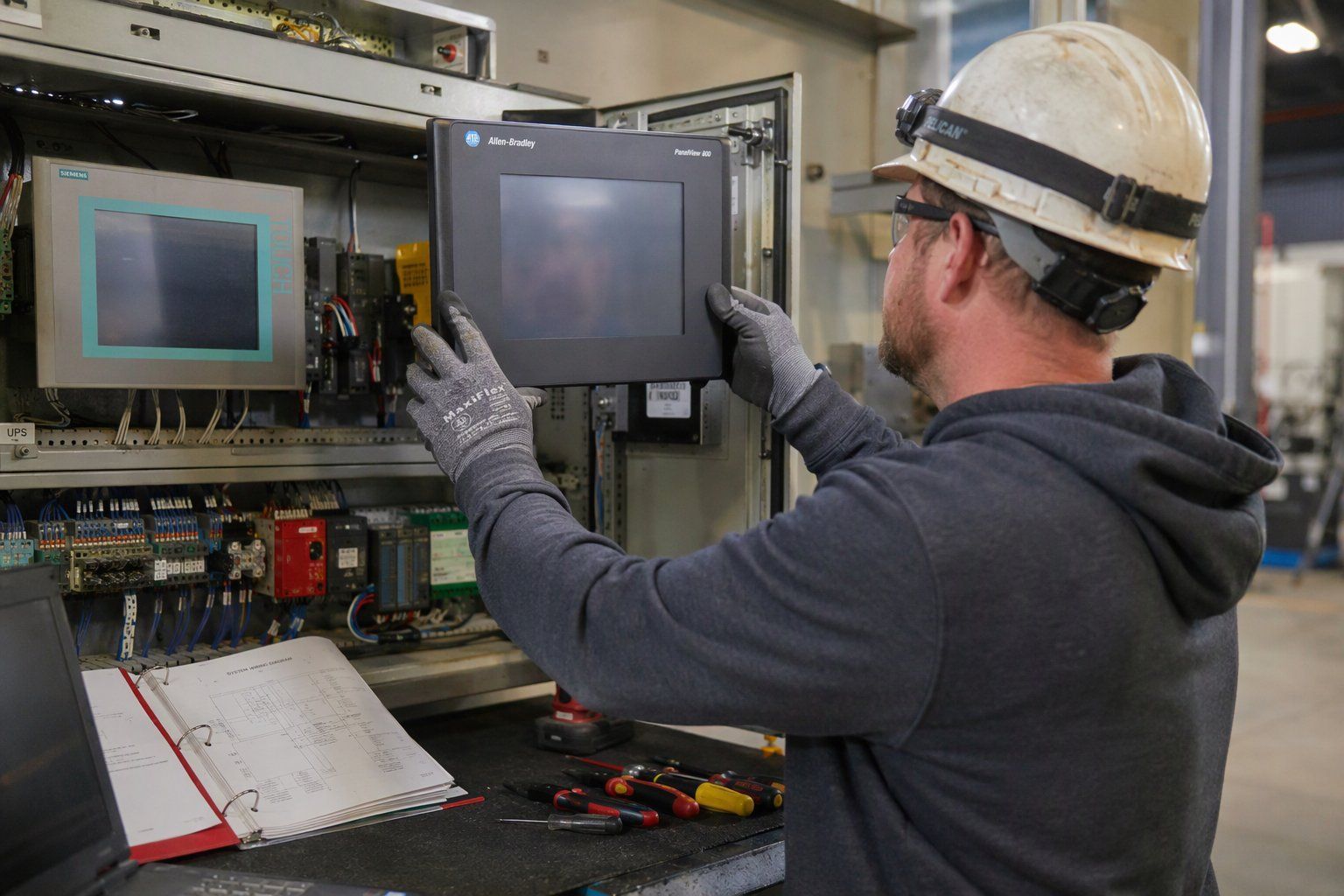
Every PanelView Plus terminal in your plant is running a file that somebody, at some point, had the source for. Whether that source still exists — and whether anyone can find it — is a different question. An HMI application backup raises the next question: How quickly can you recover? Along with backup files, it is the difference between a terminal failure being a half-day swap and it being a week of downtime while someone rebuilds screens from memory and photographs. This is not theoretical. Terminals fail from heat, age, power problems, and plain wear, usually with no warning and usually during a run. An hmi application backup is the first line of defense in industrial environments, protecting you from a long outage.
This article explains .MER and .APA, why having only one leaves you exposed, how to get the files off a running terminal now, and how to set up a routine that
does not depend on one engineer remembering. It is part of our wider work on SCADA modernization (https://www.empoweredautomation.com/scada-modernization), including the importance of industrial electronic equipment maintenance, and the first step in any plan for migrating SCADA without stopping production (https://www.empoweredautomation.com/migrating-scada-without-stopping-production) — you cannot migrate an application you do not have. That is why an hmi application backup is the safe way to start any disaster recovery plan.
.MER and .APA: They Are Not the Same File
Confusion between these two files is the root of most backup problems, so be clear on the difference.
The .MER file: what runs on the terminal
.MER stands for Machine Edition Runtime. It is the compiled runtime file loaded onto a PanelView Plus terminal. When the terminal powers up, this is what it runs: the screens, tags, alarms, and logic of the display application, packaged to execute, not to edit. Think of it as the installed program. It lives on the terminal itself, and in many plants it is the only copy of the application anywhere, often edited using the HMI editor. If a system crash occurs, restoring an HMI application from a backup typically involves transferring the backed-up .MER file to the PanelView Plus terminal. Using a USB drive or network connection, you locate and copy the .MER file onto the terminal, then use the terminal’s software to load and run the application. Be sure to follow all manufacturer instructions specific to your system to ensure proper operation after restoration.
You create a .MER in FactoryTalk View Studio and download it to the terminal via the transfer utility, USB, or memory card.
The .APA file: the archive you can actually work from
An hmi application backup keeps a clean archive of the .APA, so a successful test restore is quick. .APA is a FactoryTalk View Studio archive — a backup of the editable project. It contains the project in a form you can restore in View Studio, open, edit, and use to create a new runtime. Graphics, tag databases, alarm setup, data logs, parameters, and the project structure are packaged so another workstation with the right software version can pick the project back up. For HMI backup and restore tasks, it is recommended to use FactoryTalk View Studio itself as the primary tool, as it natively manages the .APA archive format and ensures full compatibility during backup and restoration processes.
Think of the .APA as the source and the .MER as the output. If you have a current .APA, a dead terminal is an inconvenience. If you have only a .MER, you have a recovery job with limits, covered below. If you have neither, you have a rebuild.
Why the distinction matters on a bad day
When a terminal dies, a current .MER that matches what operators were using can be loaded on a replacement and run — the good case. But if the replacement is a different model or firmware, the application needs a change, or you are moving platforms, a .MER alone may not get you there. Then you need the editable project — the .APA. A complete HMI application backup means having both a solid archive of the current files, stored somewhere other than the terminal. An hmi application backup is a single file you can carry off-site, and simple safeguards like that prevent a small failure from becoming a shutdown.
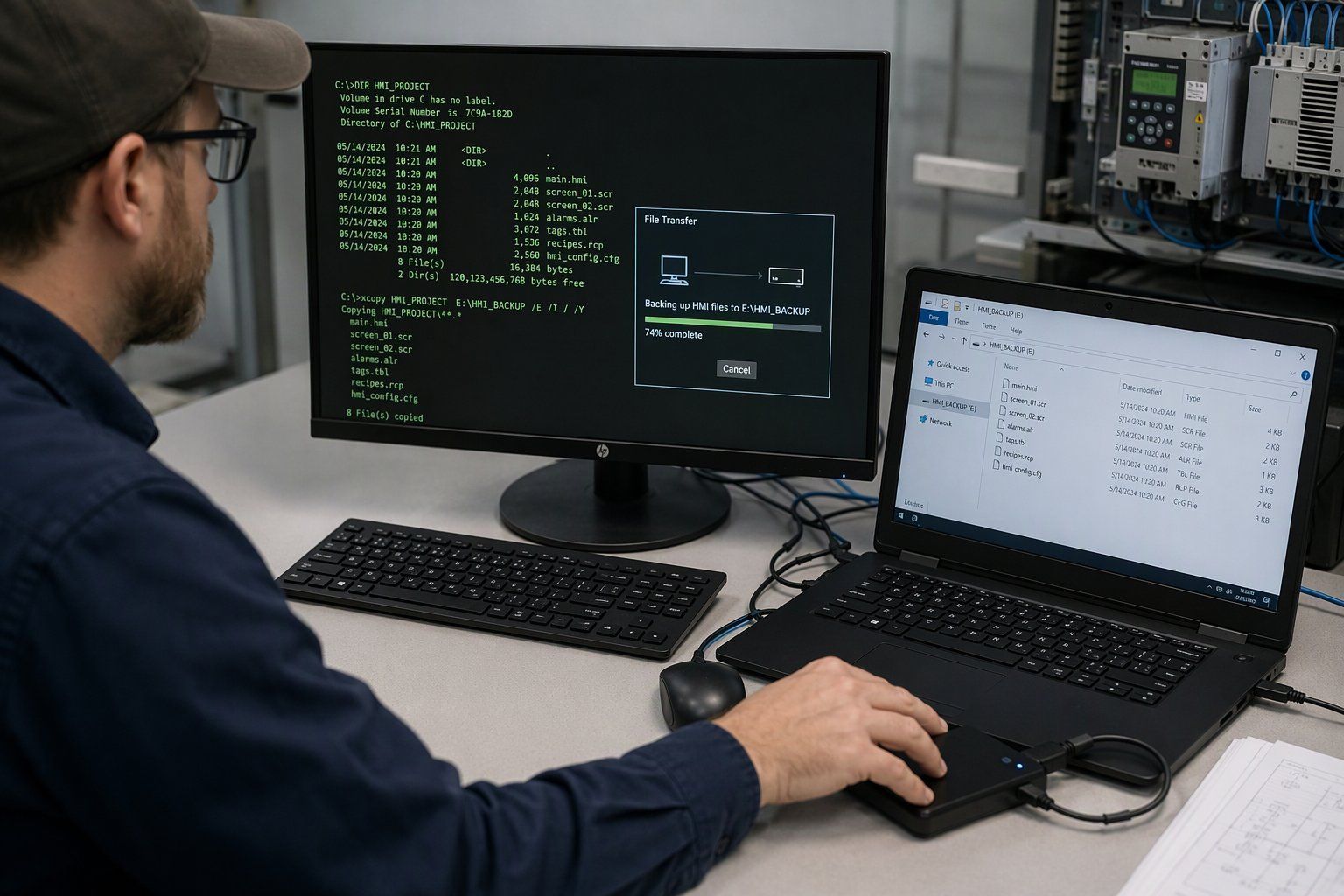
Why Is Having Only the .MER a Problem?
Many plants discover that the only file anyone can find is the .MER — sometimes still on the dead terminal, sometimes an old copy on a laptop that the controls team can access. That is better than nothing, but treat it as a partial backup, for three reasons.
First, version matters. Recovering a project from a .MER depends on the runtime version it was created with and the version of FactoryTalk View Studio you are using to restore it. Older runtimes, especially from early PanelView Plus generations, may not restore at all, or may restore only if you can match versions closely. A .MER created years ago on software nobody still has installed can be effectively locked.
An hmi application backup with a current .APA gives you a usable project file, not a reconstruction. Second, not everything comes back cleanly. Restoring a .MER can return most screens and tags, but fonts may substitute if the originals are not on the workstation, breaking carefully fitted text. Some graphics and advanced features may come back simplified or missing, and alarm, data log, security, and global object settings do not always restore exactly. You get a workable project needing screen-by-screen cleanup — not a faithful copy of the source.
Third, recovery is not the same as having the source. A recovered project can be harder to follow than the original, and anything generated at runtime or stored only in the terrminal will not be in it. Test it thoroughly before trusting it in production. Recovery is a salvage operation — valuable, sometimes the only option, but nobody who has done one would choose it over a proper .APA.
How to Upload the .MER From a Terminal Before It Fails
Do this while the terminal is still running. It takes minutes per terminal and a planned stop is not required for most of it.
- Identify the terminal and the application. Record model, firmware, IP address, and the runtime file it loads at startup.
- Connect with the transfer utility. Using FactoryTalk View Studio's Transfer Utility on a laptop on the same network, upload the .MER. With no network connection, copy it from internal storage to USB or memory card via the terminal's file management menus.
- Name it so a stranger can understand it. Include area, machine or line, terminal, and date — for example, Line3-Filler_PanelView_2026-11-19.mer. A folder of files named Application1.mer is almost as bad as no backup.
- Record the runtime version. Note the FactoryTalk View ME version that created the runtime and the terminal firmware, in a text file stored with the backup. This is gold during a later recovery and useless in someone's memory.
- Copy it off the laptop the same day. The laptop is a transfer tool, not the archive. Move the file to the designated backup location (below) first.
Repeat for every terminal, including the spare on the shelf, whose application may be older than the one in service. While you are there, check whether a matching View Studio project exists anywhere. If it does, make the .APA next. Note the software version details for each terminal as you go, so the archive records exactly which FactoryTalk View ME version and firmware each backup needs.
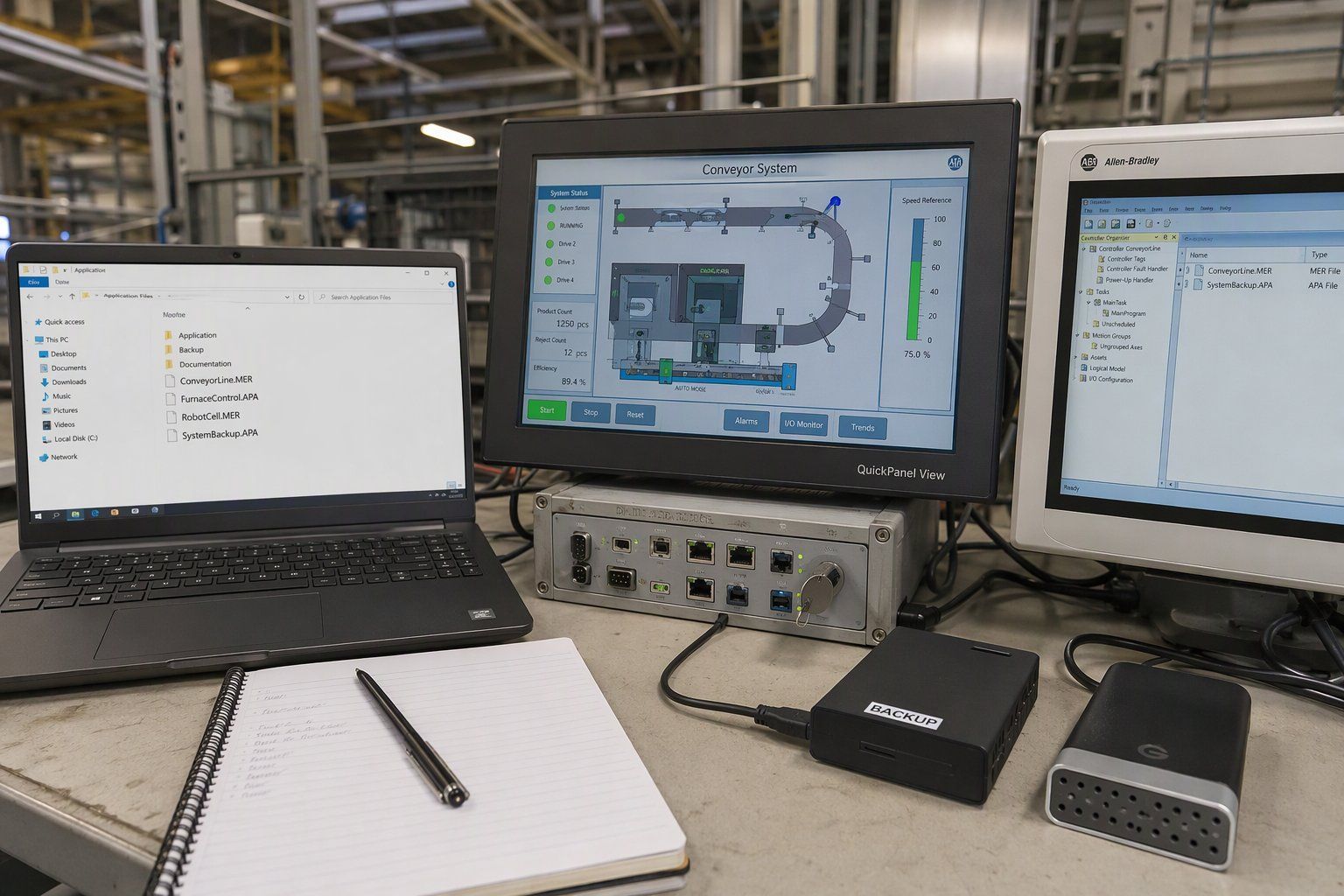
Restoring a .MER Into an Editable Project — and Its Limits
If the .MER is all you have, recovery is still worth attempting and often works well enough to save a full rebuild, especially if you are facing issues like a dead HMI panel. In FactoryTalk View Studio, use the Application Manager to restore a runtime — selecting the .MER and creating a project from it — on a workstation with a compatible version. Work on a copy; keep the original .MER untouched in the archive.
Once restored, check the project before you change or download anything:
- Open every screen and look for substituted fonts, shifted graphics, missing images, and text that no longer fits its buttons or fields
- Check the tag database and communications setup — paths to the PLC, device shortcuts, and addresses — against the running system
- Review alarms, data logs, trends, recipes, and parameter files, which are common places for settings to come back incomplete
- Check user security and any global objects or faceplates used across screens
- Create a new runtime from the restored project, load it on a spare or test terminal if you have one, and compare it against the original in operation
Expect cleanup — hours to days depending on application size, not minutes. Once the recovered project is verified, immediately archive it as a proper .APA (next section), so the plant never has to recover it again. Some very old runtimes cannot be restored at all, and you will not know which case you have until you try — another reason to try now, rather than during an outage. An hmi application backup makes that test a routine step, not a rescue, and it works within real constraints.
In the demanding landscape of industrial automation, maintaining a reliable HMI (Human-Machine Interface) application is paramount. A proactive approach to HMI application backup, including storing backups on a controlled server, not only safeguards against unexpected failures, such as a dead HMI panel, but also streamlines recovery processes.
In the demanding landscape of industrial automation, maintaining a reliable HMI (Human-Machine Interface) application is paramount. A proactive approach to HMI application backup not only safeguards against unexpected failures, such as a dead HMI panel, but also streamlines recovery processes.
The first step involves using FactoryTalk View Studio's Application Manager to restore a runtime application from the .MER file. Choose a workstation with a compatible version to ensure seamless integration and functionality. It's prudent to work on a copy; preserving the original .
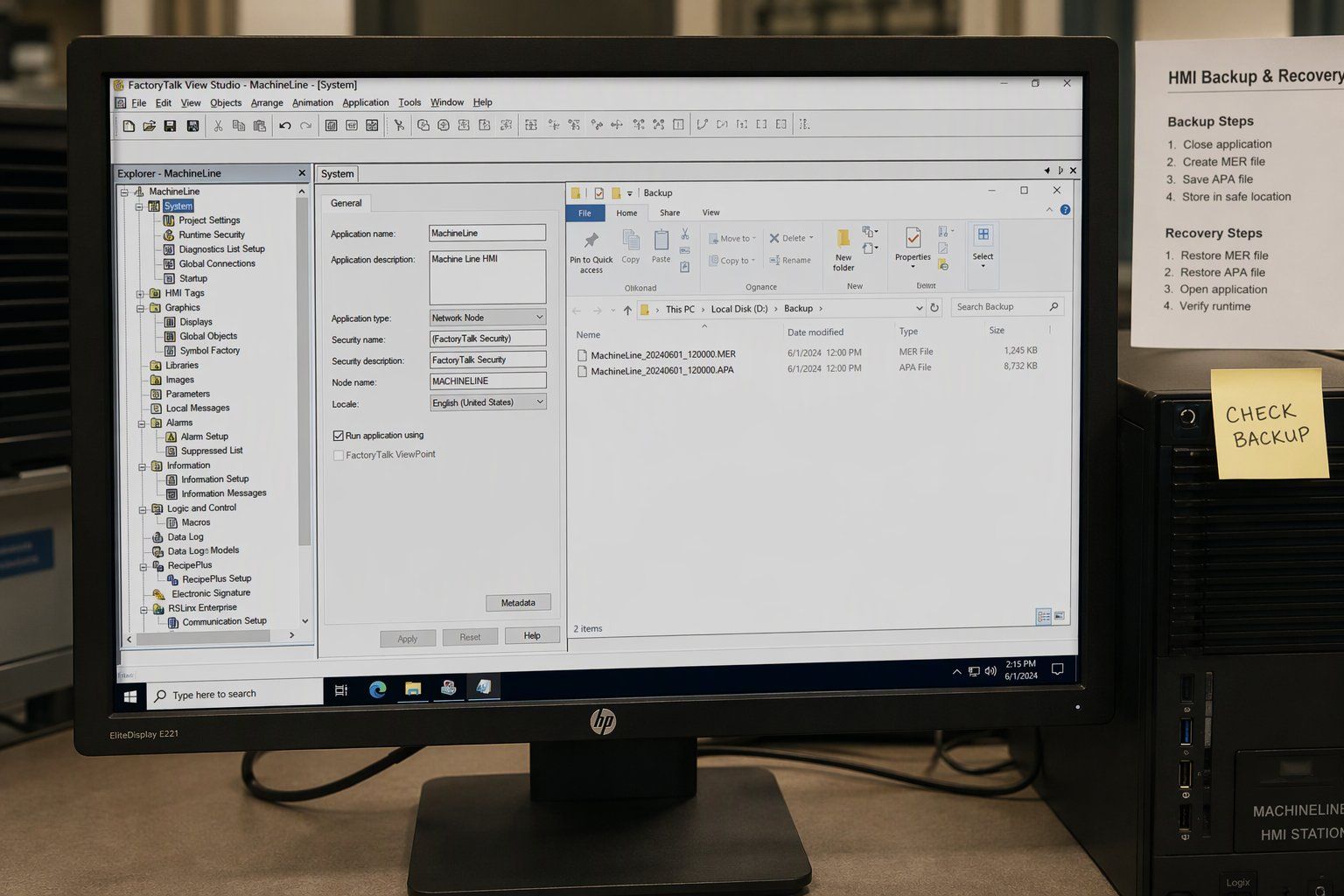
Creating a Proper HMI Application Backup: The .APA
Whenever a project is created, edited, or recovered, make the .APA at the same time. In FactoryTalk View Studio, open the project, confirm you are looking at the current version that matches what is running (download or compare if there is any doubt), and use the Application Manager to back up the application. That produces the .APA archive. Then create the runtime, download it to the terminal as normal, and store the pair together: the .APA source, the .MER built from it, and a note of the software and firmware versions.
Build this into the end of every job, including small changes. Backups most often go stale on a quick fix: an engineer adds a button during a call-in, downloads the new runtime, and leaves — the terminal now runs an application that exists nowhere else. The fix is procedural: no job is closed until the updated .APA and .MER are in the archive, making this the best option for maintaining data integrity.
Version the archive instead of overwriting it. Keep the new backup alongside the previous one, dated. Storage is cheap, and an overwritten backup cannot help you step back a revision. An hmi application backup keeps each version, so years of experience are not lost when one file is overwritten.
Where Backups Should Live
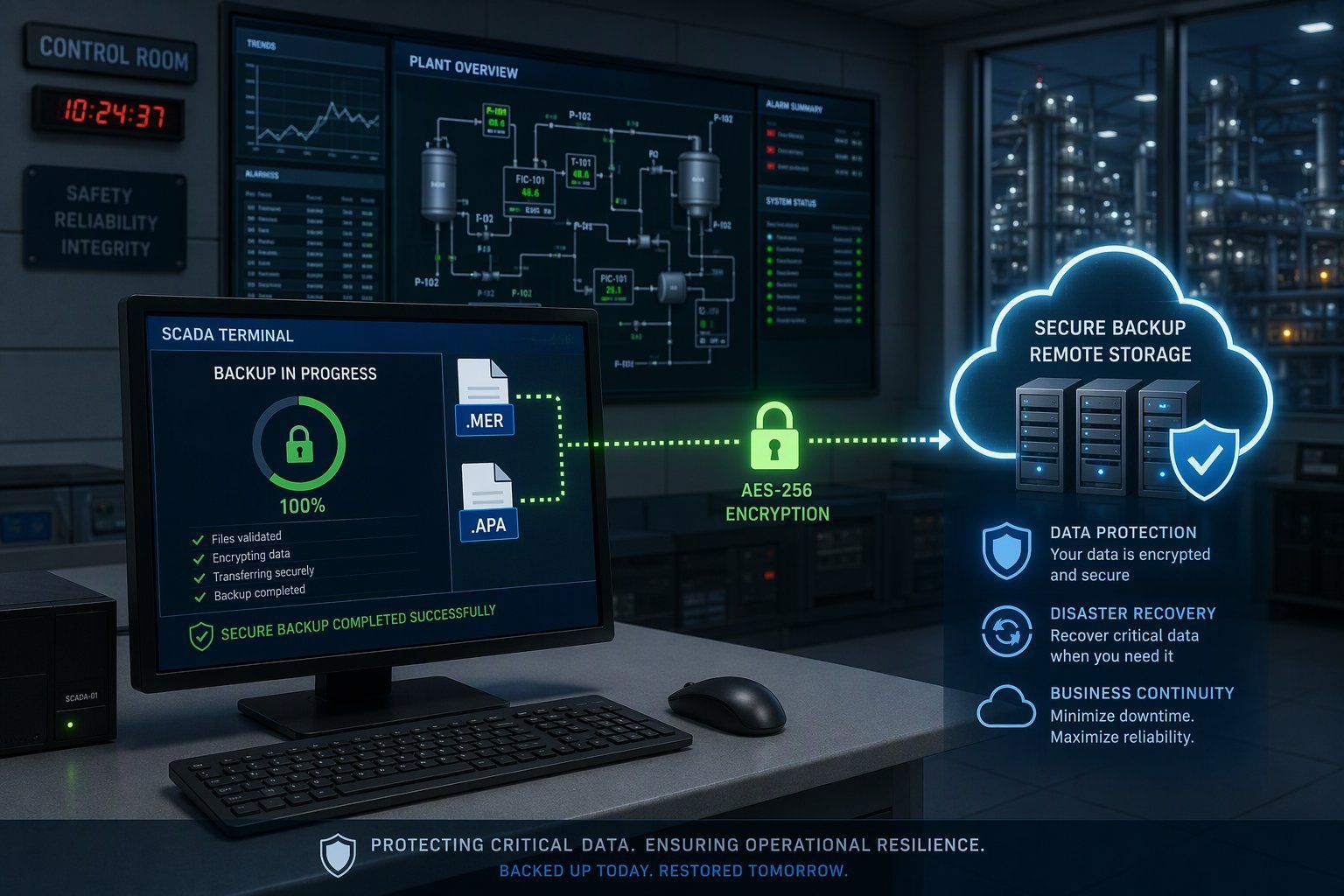
An HMI application backup that lives only on the terminal is not a backup — the terminal is the thing that fails. A backup that lives only on one engineer's laptop or on removable media is barely better: laptops are replaced, reimaged, lost, and taken home by people who change jobs. An HMI application backup needs an offline copy on file servers, with clear access rules for the whole team to mitigate risks from broader events.
Use a simple two-location rule:
- Plant location: a designated folder on a plant server or a backed-up network drive for data storage, organized by area and machine, with access for maintenance and controls staff — not buried in one person's documents folder.
- Off-site copy: a second copy outside the plant — company cloud storage, a corporate server, or an off-site backup service — so a fire, flood, ransomware event, or server failure at the plant does not take the only copies with it
Make sure more than one person knows where the archive is and how to get to it at 2 a.m. — a backup the night shift cannot find does not exist in practice. Keep a one-page index listing each terminal, application name, date and version of the current .APA and .MER, and file location. Update it as part of closing the job. If the off-site copy lives in company cloud storage, make sure the plant has reliable internet access to reach it, and that the night shift knows how to get to it.
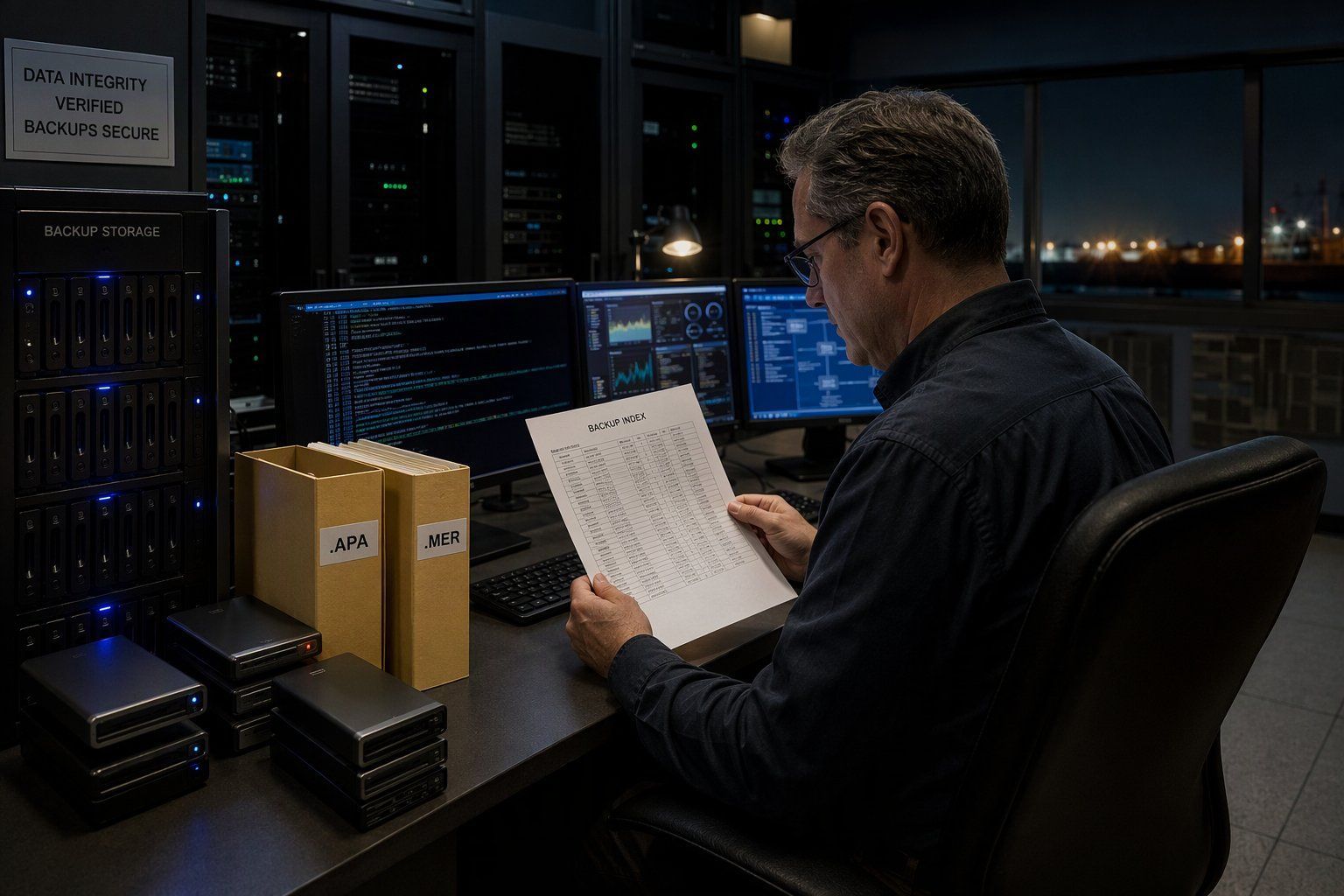
What Else to Back Up While You Are At It
HMI applications do not run alone. A terminal restored perfectly still will not run the line if the rest of the system documentation is missing. Back up, in the same locations and on the same routine: The different components of machinery — PLCs, drives, terminals, and remote I/O — each have configurations worth archiving together by machine or line.
- PLC programs: the current, commented projects for every controller the HMI talks to, plus firmware versions and a note of the software version used to open them, including panel firmware details.
- Drive parameters: VFD and servo drive configurations, exported from the drives or the commissioning software — re-entering parameters by hand from a keypad is slow and error-prone
- Control network documentation: IP address list, switch configurations where managed switches are used, device names, and a simple diagram of how PLCs, terminals, drives, and remote I/O connect, including the PLC program version.
- Related configurations: historian, alarm notification, recipe databases, user account lists, and any PC-based HMI or SCADA server applications and licenses
Store these together by machine or line, not scattered by file type across different people's drives. During a failure, the team needs "everything for Line 3" in one place. Store activation information with these files, so a replacement terminal can be licensed without delay.
A Simple Recurring Backup Routine
Backups fail as a habit, not as a technology. Keep the routine small enough that it actually happens:
- On every change: new .APA and .MER archived and indexed before the job is closed — no exceptions for small edits.
- Quarterly: upload the .MER from every terminal and compare it with the archived copy. If the running file is newer than the archive, that means an unrecorded change happened — recover or locate the project, archive it, and find out how it slipped through.
- Twice a year: open one archived .APA in View Studio and confirm it restores cleanly on the current workstation. Rotate which application you test. This catches version and license problems while they are still minor.
- When hardware changes: any terminal, server, or workstation replacement triggers a check that the new hardware has the right runtime loaded and the archive matches it.
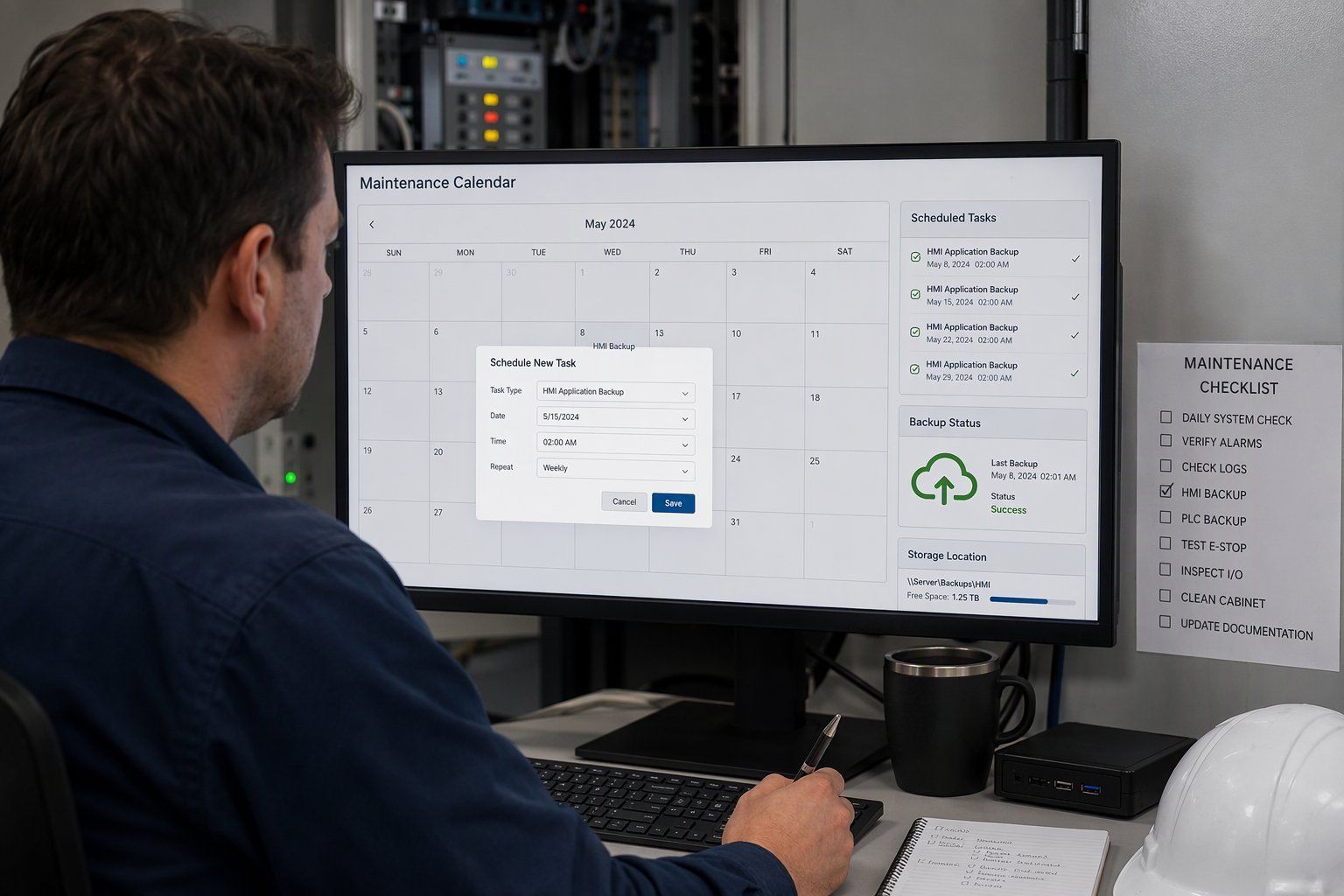
Assign the routine to a role, not a person, and put the quarterly
check on the maintenance calendar like any other preventive
maintenance task, because that is what it is. A practical approach keeps the routine small enough to survive staff changes and busy quarters. An hmi application backup routine is preventative maintenance, and the best time to run it is on a schedule, not after a failure.
What It Costs When There Is No Backup and the Terminal Dies
The terminal itself is the smallest cost: a replacement PanelView or industrial PC, possibly with volume pricing for expedited shipping, and possibly a different model because the exact unit is discontinued. That still leaves you with an empty screen.
Without a usable application, the real work is reverse engineering. Someone — your engineer, or an integrator called in urgently — has to reconstruct the application from the PLC program, operator memory ("there was a button here that did something with the reject count"), photographs if anyone has them, and paper records. For a comprehensive assessment, you can also contact us for a free evaluation. Basic screens take days. Applications with recipes, trending, alarm history, and multiple machines take longer, and the rebuild is rarely identical — some functions nobody remembered do not come back until someone needs them mid-run. Outside repair services can help with the failed hardware, but only a current backup restores the application itself. A rush repair service can replace a failed terminal quickly, but it cannot rebuild the application without a backup.
An hmi application backup is cheap insurance against that cost, and frequent testing keeps it honest. With a current .APA and .MER on file, a dead terminal means a rapid turnaround time — swap the unit, load the runtime, and the line is running again the same day. Meanwhile the line is down or running degraded, with extra staff watching processes the HMI used to monitor and quality records kept by hand. Add downtime, overtime, expedited hardware and engineering at urgent rates, and missed shipments, and one failure without a backup routinely costs more than years of the routine above — a few hours per quarter and some server space. Planned work gets delayed too, because the same people are rebuilding screens that existed the week before.
Closing: Get the Files While the Terminals Are Still Running
None of this requires a shutdown, new software, or a capital project. Upload the .MER files, locate or recover the projects, archive proper .APA backups, store them on a plant server and off-site, and put the quarterly check on the calendar. Contact us for a no-obligation quote. A complete hmi application backup for a typical plant is days of scattered work, most of it minutes per terminal — and it turns your next terminal failure into a routine swap.
Empowered Automation Solutions, a leading industrial repair service provider, can recover and back up these applications for you: uploading runtimes from running terminals, restoring .MER files into editable projects, cleaning up recovered applications, creating proper .APA archives, and setting up an organized backup library for your HMIs, PLCs, and drives. If you do not know, right now, where the current source for every terminal in your plant is, that is the place to start — while the terminals are still running and the files are still there to get.
You might also like