Migrating RSView32 and Wonderware InTouch Applications: What Converts and What Doesn't
If you are still running RSView32 or an older version of Wonderware InTouch, the problem is probably not the application itself. The screens still work. Operators know them. The problem is everything underneath — the PC, the operating system, and the fact that the vendor moved on years ago. A Wonderware InTouch migration, including considerations for WindowMaker, and an RSView32 migration for that matter, is rarely about wanting new graphics. It is about not being one hard drive failure away from running the plant blind. To convert an InTouch Modern App to a Managed App, you typically use the InTouch Application Manager and follow the migration process outlined by Wonderware documentation. This includes exporting your Modern App and then importing it into the Managed environment, ensuring compatibility with your system's current hardware and operating software. Always review your application components and backup your data before starting the conversion.
RSView32 was discontinued years ago. Most installations left in the field run on Windows XP, Windows 7, or an early Windows 10 build that IT no longer wants on the network. InTouch has a more current product history, but many plants are still tied to the original application versions 10.x or 2014-era versions tied to aging operating systems, older frameworks, and hardware that cannot be replaced like-for-like. Support narrows every year, spare PCs get harder to source, and a simple question — "can we add one more screen?" — turns into a project. For plants seeking to modernize, the process to migrate from AVEVA InTouch HMI to System Platform generally involves assessing the existing InTouch application for compatibility, converting graphical displays and scripting, mapping tag databases, and reconfiguring system architecture to leverage the features of System Platform. Migration tools provided by AVEVA can assist with importing InTouch applications, though testing and validation are critical to ensure seamless integration with new hardware and operating systems.
This article covers what actually happens in a Wonderware InTouch migration from the source PC, including WindowViewer: what to inventory before anyone quotes the job, what converts with reasonable effort, what has to be rebuilt, and what drives the cost. To ensure data integrity during a Wonderware InTouch HMI migration, it is essential to thoroughly inventory all relevant system components and configurations prior to starting the process. Carefully document data sources, tag databases, and application settings. Using reliable migration tools and verifying each step with cross-checks can help prevent data loss or corruption, while post-migration testing ensures that information remains accurate and consistent.
Start With an Inventory, Not a Quote
No one can estimate a Wonderware InTouch migration accurately from a screen count alone. Two applications with 40 screens can be completely different jobs. One might have 800 tags, no scripts, and a simple alarm list. The other might have 4,000 tags, scripts on half the windows, ActiveX controls, and a historian configuration nobody has touched in a decade, along with the license file. For official documentation on Wonderware InTouch migration paths, visit AVEVA’s website, which provides detailed migration guides and resources to help you plan and execute your migration effectively. You can also reference the AVEVA Knowledge & Support Center for comprehensive technical documentation and best practices.
Before you choose a target platform for a wonderware intouch migration, build an inventory: If you are starting from InTouch 10, it's important to note that InTouch 10 does not support direct migration to the latest Application Server environment. To move intouch projects to the newest Application Server, you typically must first upgrade your intouch project to a more recent version that is compatible with the Application Server migration tools, otherwise, InTouch may run in demo mode.
Screens and navigation. List every display, pop-up, and faceplate, including any IMD screens. Note which ones operators use daily, which are engineering screens, and which are dead — built for equipment removed years ago. Do not pay to recreate screens nobody opens. Save the window list and screenshots while the development tools still run. If the original project files or development license are missing, finding them is step one. During Wonderware InTouch migration, common issues you should watch out for include missing or outdated project files, the risk of unnecessarily recreating obsolete screens, and compatibility challenges between old and new versions. Ensuring you have a complete inventory of screens and a backup of all relevant files will help you avoid these problems and streamline your migration process.
Tags. Export the tag database if you can. For InTouch, that is the tagname dictionary. For RSView32, the tag database plus derived and memory tags. Count discrete, integer, real, and string tags, and flag indirect tags and SuperTags. The tag list is the backbone — screens, alarms, scripts, and history all point back to it. If you're planning to migrate older InTouch HMIs to newer platforms, there are conversion services available that can help automate the transfer of tag databases and associated application components, addressing potential tag database incompatibilities and making the upgrade process more efficient and reliable.
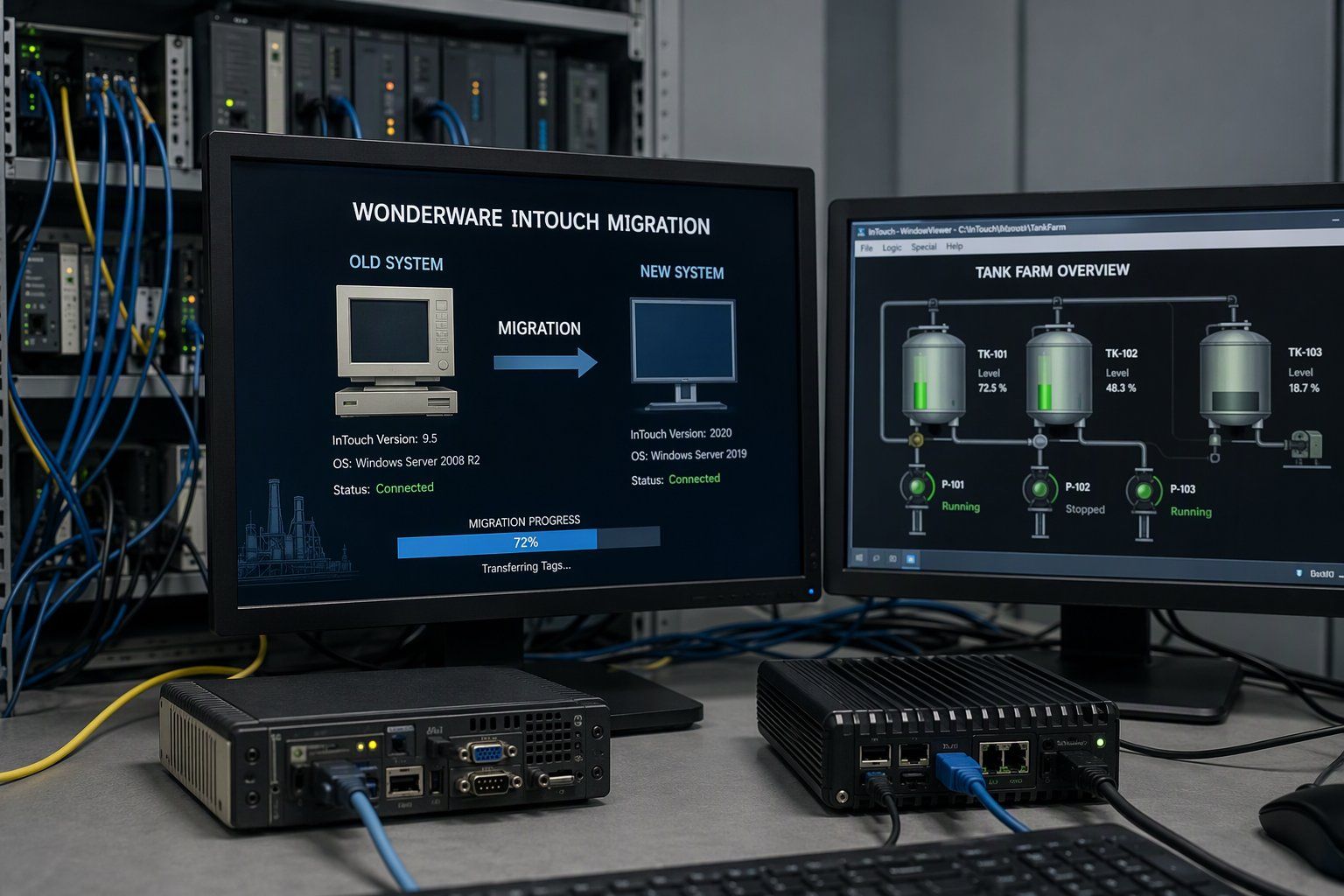
Scripts. Inventory every script by type and location: application, window, condition, data-change, and key scripts in InTouch; VBA code and derived tag expressions in RSView32. Note in plain language what each one does, especially regarding the specific project folder for your application files. You do not need to rewrite them yet, but you need a count and a sense of complexity. Plants that say 'we have a few scripts' sometimes find 200 when someone actually looks. When upgrading from InTouch 9.5 to Wonderware AVEVA 2020, the main steps typically include starting with a comprehensive inventory of your project components, as outlined above. Next, review compatibility between existing scripts and the AVEVA platform, plan for necessary script conversion or rewriting, back up all application files, and migrate project files using AVEVA's migration tools. Finally, test your application thoroughly to ensure all scripts and features work as intended within AVEVA 2020.
Alarms, history, and recipes. Document alarm groups, priorities, deadbands, and where alarms are logged. List which tags are trended, at what rate, and whether that data feeds reports or regulatory records. List recipes, batch records, and shift reports built into the HMI separately — they are easy to miss. If you're planning to move an InTouch HMI project to a new PC, it's possible to do so without reconfiguring everything, as long as you thoroughly inventory the existing alarms, history, and recipes. By documenting these elements, along with all associated configuration files, you can help ensure a smooth transfer to the new system.
I/O servers. Record what talks to the controllers: DA Servers or OPC servers in InTouch systems, RSLinx topics in RSView32 systems, PLC models, node addresses, topic names, and update rates. This layer matters as much as the graphics. If you are planning to migrate your existing Wonderware InTouch application to the latest AVEVA InTouch version, make sure to perform a thorough inventory of all these elements. Carefully document each component and check AVEVA’s compatibility guidelines to ensure a smooth transition, then use the AVEVA Migration Tool to import and validate your application in the new environment while preserving your settings and minimizing the risk of data loss.
With that inventory done, you have something an integrator — or your own team — can actually price. Without it, every estimate is a guess.
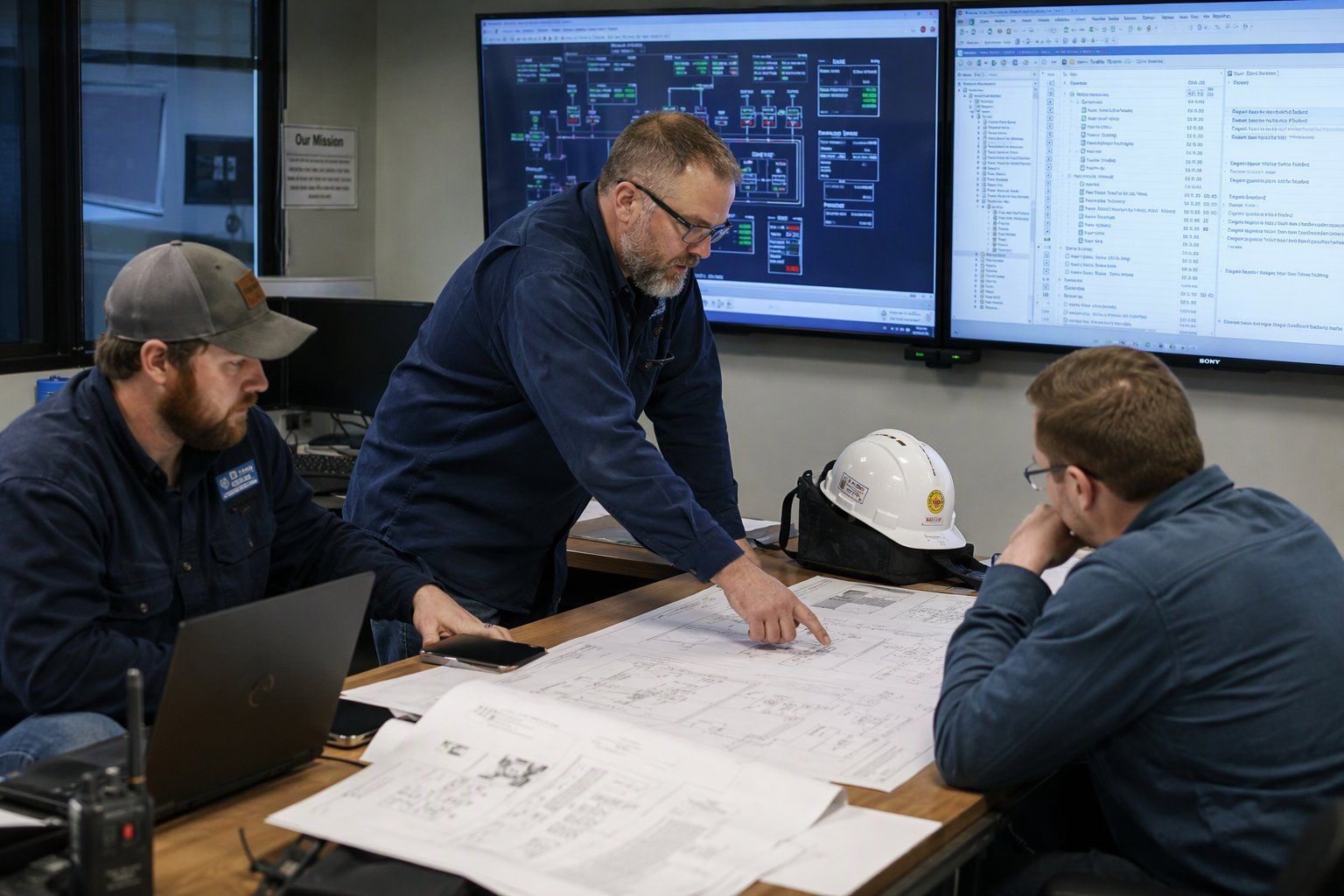
Where a Wonderware InTouch Migration Fits in the Bigger Plan
A wonderware intouch migration is one piece of a larger [SCADA modernization](https://www.empoweredautomation.com/scada-modernization) effort, not the whole effort. The HMI application, I/O layer, historian, alarm approach, network, and workstations all touch each other. Changing only the software on the target PC without looking at the rest usually recreates the same problems on a newer PC.
Think early about how the new system will be proven before the old one is turned off. A phased approach — building the new application, running it alongside the old one, and cutting over in a planned window — is covered in our guide to [migrating SCADA without stopping production](https://www.empoweredautomation.com/migrating-scada-without-stopping-production). That parallel period is where most conversion errors are found, and it should be in the plan from the start.
What Converts Reasonably Well in a Wonderware InTouch Migration?
You are not starting from zero. Several parts of an application carry useful information into the new platform, even if the transfer is not a single button click. The sections below show which parts carry over and which need manual work.
Tag databases
Tags are the most portable part. InTouch tagname exports and RSView32 tag exports can be opened in a spreadsheet, cleaned up, and mapped to the new tag structure. Names, descriptions, engineering units, scaling, and PLC addresses usually survive in usable form. Expect manual cleanup — duplicates, obsolete tags, inconsistent naming, and tags pointing to PLCs that no longer exist. But mapping 2,000 tags from an export is far faster than retyping them from printouts. Keep a cross-reference so maintenance can find what changed, and if any issues arise, please contact us via email for assistance.
Standard graphics
Basic graphics convert in a practical sense, even when they do not import directly. Pumps, valves, tanks, motors, numeric displays, and navigation can be recreated quickly, especially if the target platform has a good symbol library in the IDE and takes advantage of the Wonderware System Platform. Moving within the same vendor family can preserve more layout — RSView32 to a Rockwell successor is a different conversation than InTouch to a completely different package.
Be realistic either way. Imported graphics almost always need cleanup: fonts shift, colors change, alignment drifts. Many plants use the migration to simplify screens — fewer gradients, clearer alarm colors, consistent faceplates — without a full redesign. Decide up front whether you want like-for-like or a cleaned-up version. Like-for-like is faster for operators to approve. A redesign takes more review but can fix confusing screens. Mixing the two without saying so causes arguments at startup.
Alarm and historical tag lists
Which tags alarm, at what limits, and which tags are historized can be exported and used as the build list for the new system. The values are worth preserving. The mechanism in the new platform will be different, but you should not have to rediscover that a tank has a high-high alarm at 92 percent.
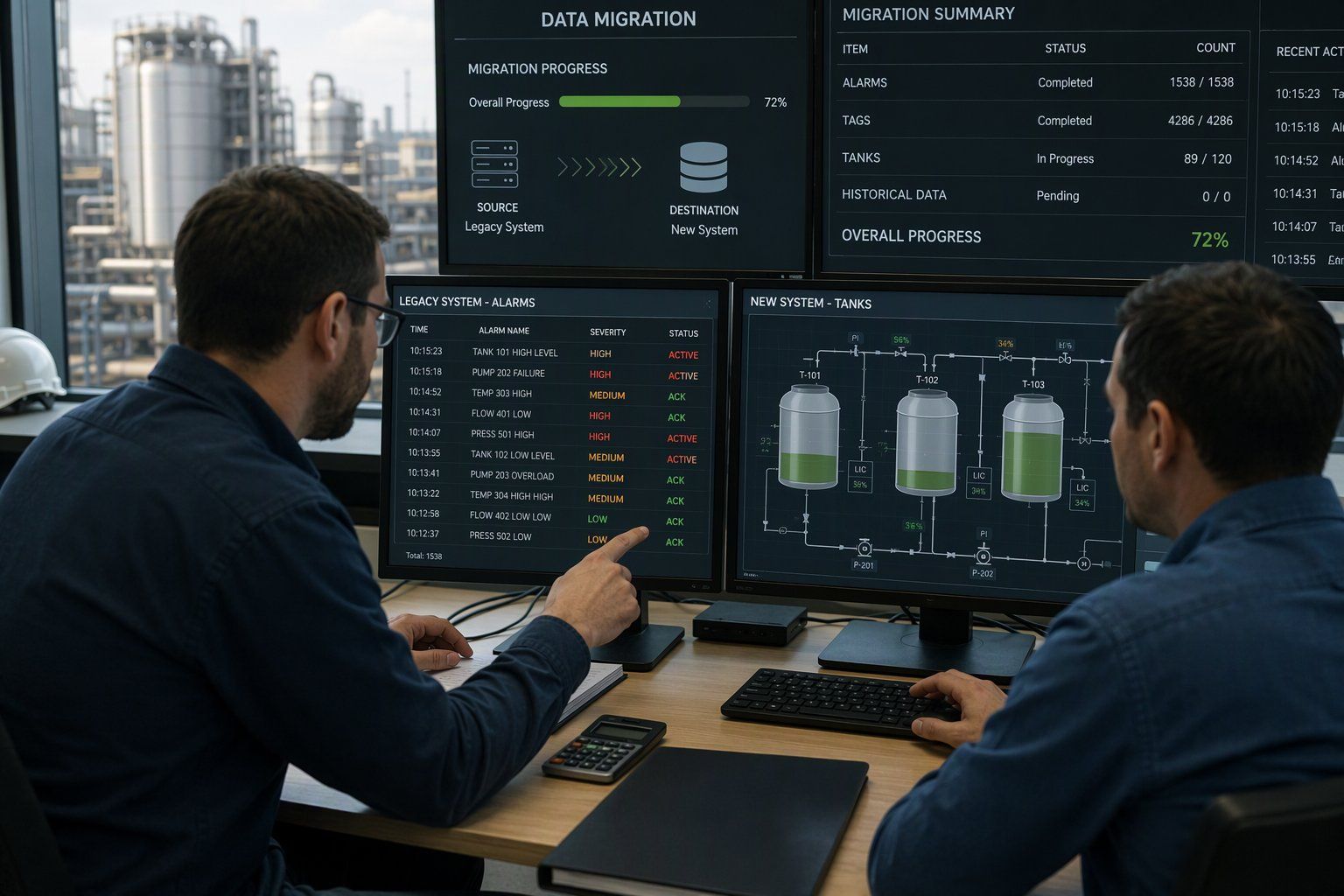
What Does Not Convert and Has to Be Rebuilt
This is the part that surprises people, and where budgets get missed if it is glossed over.
Scripts and logic in the HMI app
QuickScripts in InTouch and VBA in RSView32 do not convert to a new platform's scripting language, which may lead to script errors. The syntax, functions, and handling of windows and tags are all different. Every script has to be read, understood, and rewritten, especially considering the runtime dependencies. The same applies to RSView32 commands, macros, and derived tags that embed logic.
That is not always bad. Many old scripts are workarounds for limitations that no longer exist, or calculations that belong in the PLC rather than the HMI. Part of the work is deciding what moves to the PLC, what stays in SCADA, and what gets dropped. But it is manual, script-by-script work that needs testing. If your inventory found 150 scripts, that line item will likely be larger than the graphics work.
ActiveX and third-party controls
ActiveX controls are gone. If your windows use ActiveX trend controls, grids, report viewers, or custom objects, those supporting components have no direct equivalent to import. Each has to be replaced with a native feature of the new platform — a built-in trend, table, or alarm client — or a different approach entirely. Sometimes the native replacement is better. Sometimes a report an ActiveX control produced in one click needs to be rebuilt separately. Find these in the inventory, because one heavily used control can affect dozens of screens.
Alarm, history, and security configuration
Even though the lists carry over as information, the configuration itself is rebuilt. Alarm engines differ across platforms in priorities, shelving, suppression, and how history is stored and queried. Historian setup — storage rates, deadbands, compression, retention — is also done fresh, including considerations for dbdump files. That rebuild is a chance to fix alarm floods and stop historizing tags nobody looks at, but it is still build-and-test work, not a file copy.
User accounts and security are rebuilt too. Old systems often have a few shared logins everyone knows. A new platform will push you toward individual accounts, role-based access, and possibly Active Directory integration. Additionally, compress the application files into a ZIP archive to ensure smoother file management. Decide who needs operator, supervisor, and engineering access to the application files before startup week, not during it.
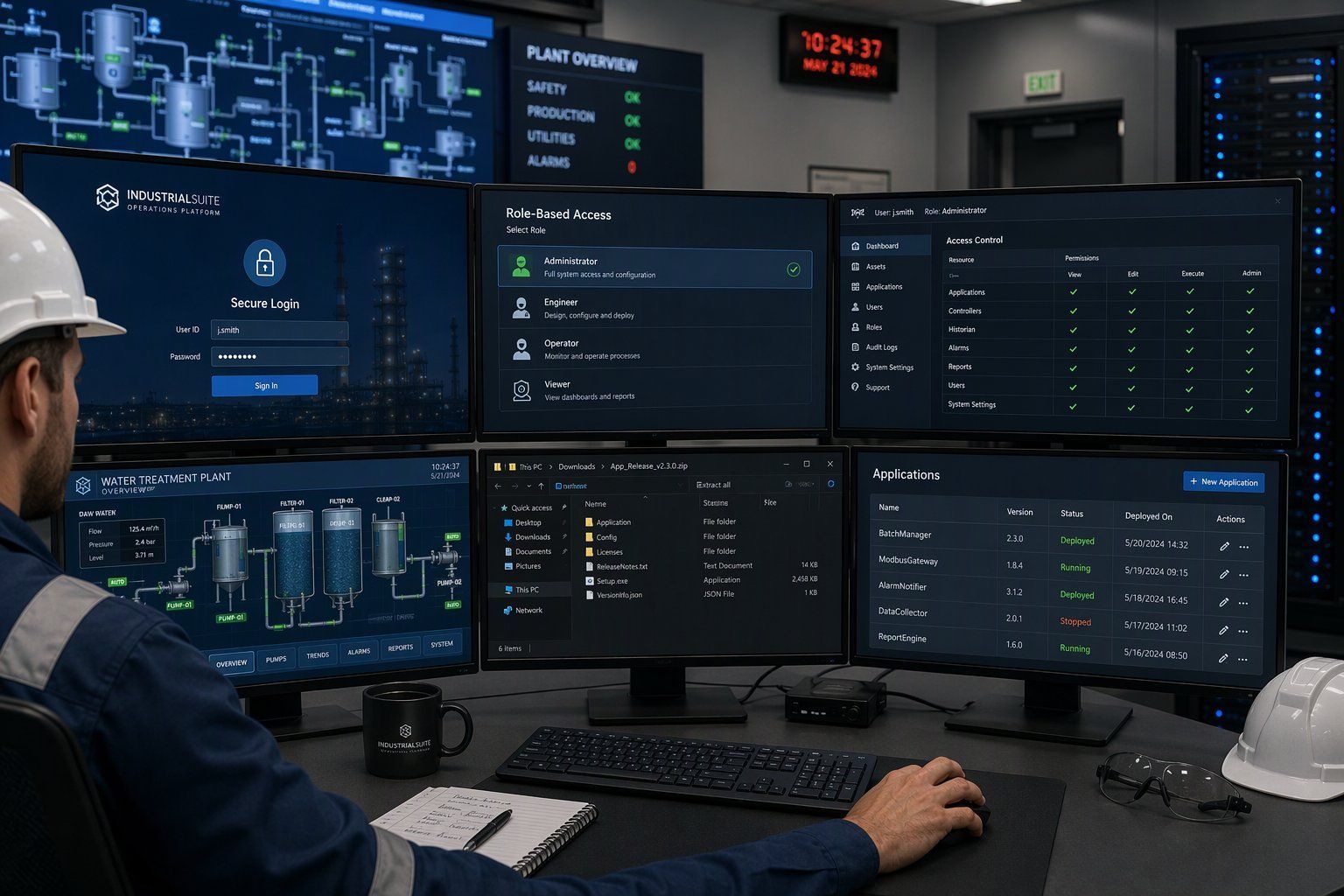
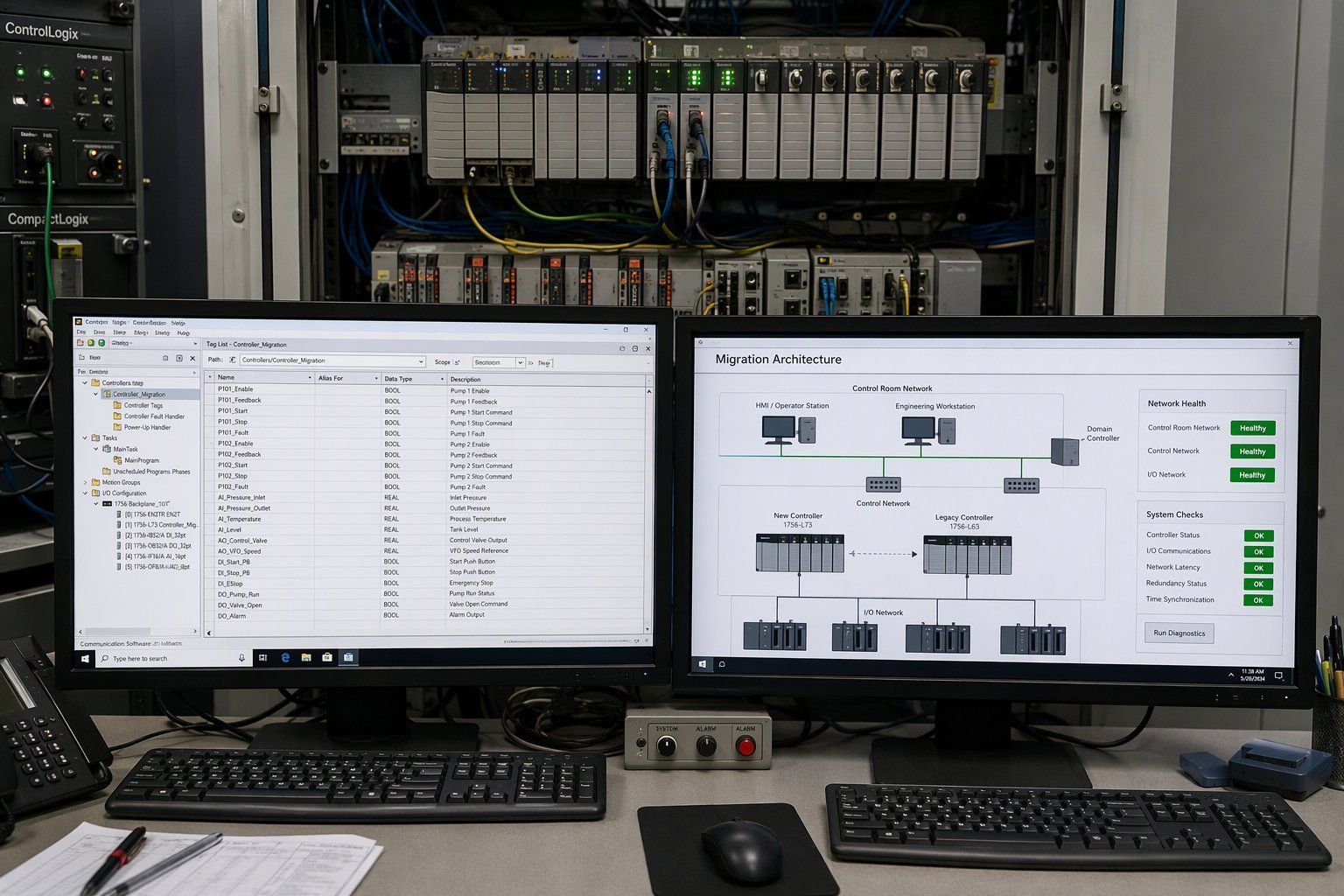
Choosing the Target Platform for Scalability Is Part of the Migration
Make the target decision during scoping, not after conversion work starts. It affects how much can be imported, what language the script rewrites use, how historian and alarms are built within the InTouch project directory, and what licensing looks like for the next ten years.
Use practical criteria: Does it have solid, supported drivers for every controller you have? Can it handle your tag, screen, and client count with room to grow, without forcing a server architecture you do not need? Does the AVEVA System Platform historian and reporting meet real needs, including regulatory or customer reporting? How are remote and view-only clients licensed? Can your staff learn it, and can you get help when something breaks at 2 a.m.? What is the five-year licensing cost, not just the purchase price?
Staying in the same vendor family can reduce conversion effort. Moving to a different platform for a wonderware intouch migration — including modern options such as Ignition, VTScada, FactoryTalk View SE, or a current AVEVA product with full HMI functionality — can give a better long-term fit at the cost of more rebuild up front. Neither is automatically right. Make the tradeoff explicitly, with the inventory in hand.
Decide hardware at the same stage of a wonderware intouch migration: operating system, whether the server will be virtualized, backup and restore, the appropriate service pack, the directory path, and how Windows updates will be handled. A wonderware intouch migration that ends on another unmanaged PC under a desk has not solved the original problem.
Running Old and New in Parallel
Do not plan to turn the old system off on Friday and start the new one on Monday based only on bench testing. Put the new application and related applications on the network in read-only mode, reading the same PLCs at the same time as the old system, with the old system keeping control authority. Compare values, alarms, and trends side by side.
Check the details: Do values match? Do alarms arrive at the same time with the same priority? Do trends line up over a shift? Do scripts calculate the same totals? Once control is enabled in a supervised test, do faceplate commands do exactly what the old buttons did? With AVEVA InTouch HMI, you can ensure accuracy, consistency, and scalability in these operations.
Keep the old system as the system of record during a wonderware intouch migration until the new one has seen normal production, a changeover, and preferably an upset or downtime event. Then switch operator stations in a planned window, keep the old system available as rollback for a soak period, and decommission it only after that period passes cleanly, while ensuring you reference the historical trend data from the previous system.
What Actually Drives the Effort
Script volume is usually the biggest driver in a Wonderware InTouch migration. Simple visibility scripts are quick; interlocked, multi-step scripts with string handling and file writes are not. After that: screen count and complexity, tag count and number of controller types, and the scope of alarms, history, and custom reports, including the standard migration procedure — regulatory and batch reports are separate deliverables, so count them. Situational awareness is crucial, especially regarding cutover constraints. A plant with only a four-hour window twice a year needs more parallel testing and rehearsal than a plant with weekly downtime. Documentation and training are the last driver people try to cut; skipping operator training saves money on paper and costs it back in the first month.
The cheapest wonderware intouch migration to a new PC is the one scoped correctly the first time. Cutting inventory or testing does not remove that work — it moves it into startup, where it is more expensive and more disruptive.
A Practical Sequence That Works
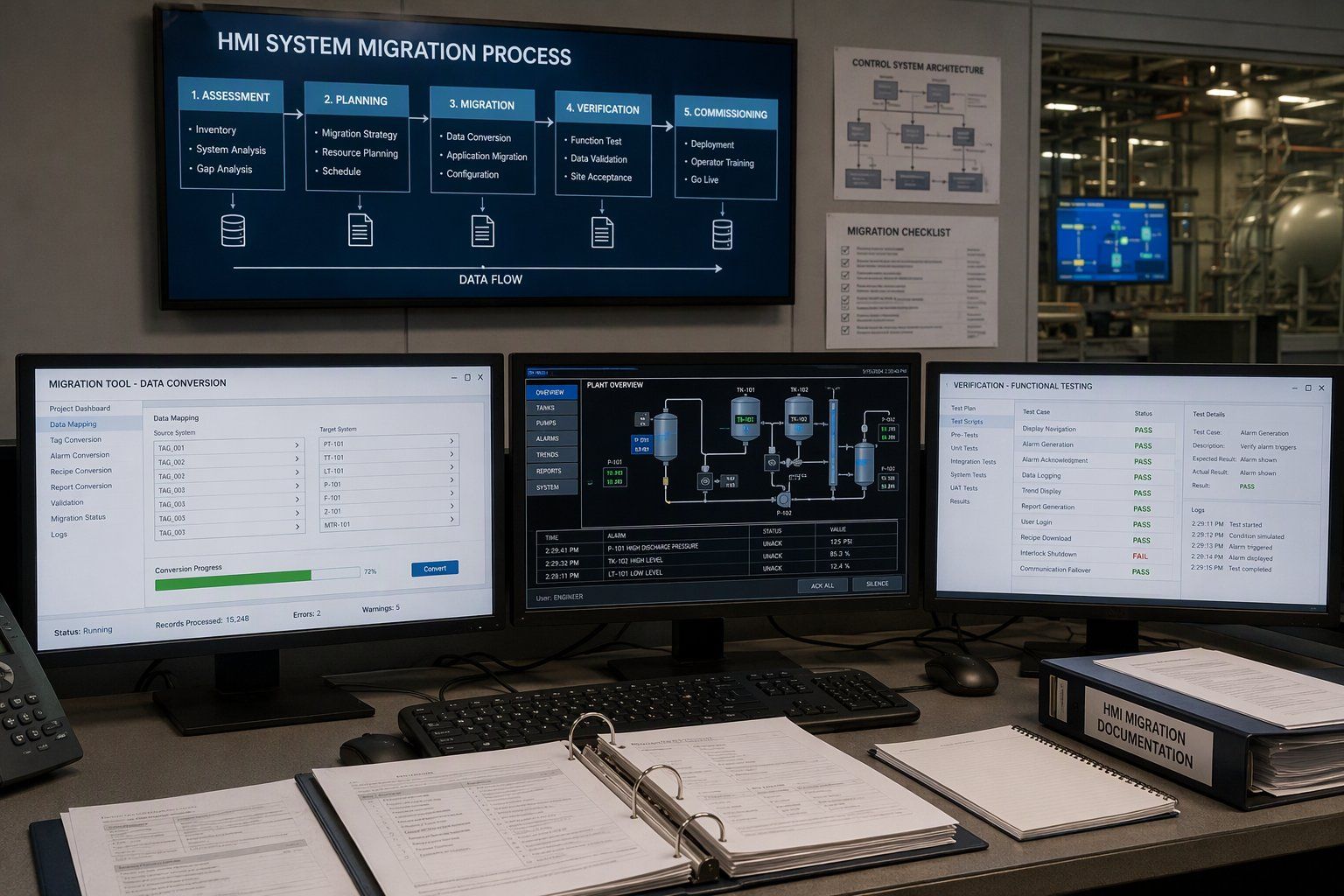
For most mid-size plants: inventory and target selection, tag and I/O build, screen build from the inventory and screenshots, script rewrite with a test for each script, alarm and historian build, testing against a PLC or simulated data, parallel running in read-only mode, supervised control testing, planned cutover, and a soak period with the old system still available. Each step should produce something reviewable — a tag cross-reference, a screen for operator approval, a script test record — so problems are caught while they are cheap to fix.
Build in operator review. The people who run the screens all day will spot a missing indicator faster than anyone in engineering. When the job is done, keep a backed-up project, a license record for the app, and a short document that says what talks to what, including specifications like .dx files.
Talk Through Your Migration Before You Have to Rush It
Empowered Automation Solutions does this wonderware intouch migration work for manufacturers — inventory, platform selection, conversion and rebuild, parallel testing, and cutover — and we are glad to talk through what your RSView32 or InTouch application would actually take to move, incorporating best practices with no pressure to start before you are ready.
You might also like