Web-Based SCADA: What Browser Configuration Changes
For years, changing a SCADA system meant going to the right computer. The configuration software lived on one engineering workstation, or on the server itself, and if that machine was busy, locked, or down the hall in another department, the change waited. Web based scada configuration changes that location rule. With browser-based tools — including the web based scada configuration introduced in Open Automation Software (OAS) Version 22 — an authorized engineer opens a browser, logs in, and configures the system from a workstation that already has network access to the server. No separate thick-client install has to be loaded first.
That sounds like a small IT convenience. In a plant, it changes who can do the work, how fast support can help, and how carefully you have to think about access. It does not change what SCADA is doing underneath. This article separates the two: what web based scada configuration actually changes, what it does not, and what to verify before you move a working plant to it. If you are [choosing a new SCADA platform](https://www.empoweredautomation.com/choosing-a-new-scada-platform), this distinction matters, because vendors use "web-based" to describe very different things.

What Web Based SCADA Configuration Actually Means
The term web based scada gets used for at least three different capabilities, and they are not interchangeable.
The first is web viewing: operators or managers open a screen in a browser instead of a dedicated runtime client. The second is web configuration: tags, alarms, data logging, and connections are set up through browser pages served by the SCADA server. The third, in some products, is web HMI design: building and editing the operator screens themselves in the browser.
OAS Version 22 moves configuration into the browser in a practical sense — the work that previously required installed configuration tools on a specific machine can be done through a browser session against the server. Ask any vendor claiming web based scada configuration which of the three capabilities they mean, which tasks still require an installed tool, and which browser and server versions are supported. A system that only views in a browser is useful, but it will not solve the 2 AM problem described later in this article.
What Changes When Configuration Happens in a Browser
No Client Installs to Maintain
The most immediate change is the end of install management for web SCADA systems. There is no configuration client version to install, patch, and keep matched to the server version on three different engineering laptops. When the server is updated, the browser interface served by that server is the current one. Anyone who has chased a version mismatch — a laptop with last year's tool trying to configure this year's server, in the middle of a downtime event — will recognize how much time that removes.
It also removes a common workaround: keeping one aging, untouched engineering PC because "that's the machine with the software for control systems on it." Those machines become a risk of their own. They miss operating system updates, nobody wants to reboot them, and when they finally fail, the plant discovers the install media and license keys are nowhere to be found.
Any Authorized Workstation Can Configure
With web based scada configuration, the limiting factor is no longer which computer has the SCADA software. It is who has permission and network access. A controls engineer can make a tag change from the control room, from the maintenance office, or from a workstation near the line that is having the problem, instead of walking back to a single desk to make a thirty-second change and walking back to verify it.
That convenience cuts both ways, and the accessibility security section below covers the controls it requires. Convenience without role-based permission is just wider exposure. Done properly — named users, defined roles, and an audit trail — it makes legitimate work faster without making the system open.
Remote Access for Support Gets Simpler
When configuration is in a browser, remote support no longer starts with "install our tool" or "give us remote control of your engineering PC." An integrator or internal engineer at another site can, through the plant's approved remote access method, open the same browser interface the local team uses, similar to managing remote terminal units (RTUs). The session is narrower and easier to supervise than handing over a full desktop.
For mid-size manufacturers without a controls engineer at every site, this is a real operational gain. A problem at a second plant does not require a drive or a flight for a configuration change that takes twenty minutes once someone qualified can see the system, ultimately reducing maintenance costs.
What Browser Configuration Does NOT Change
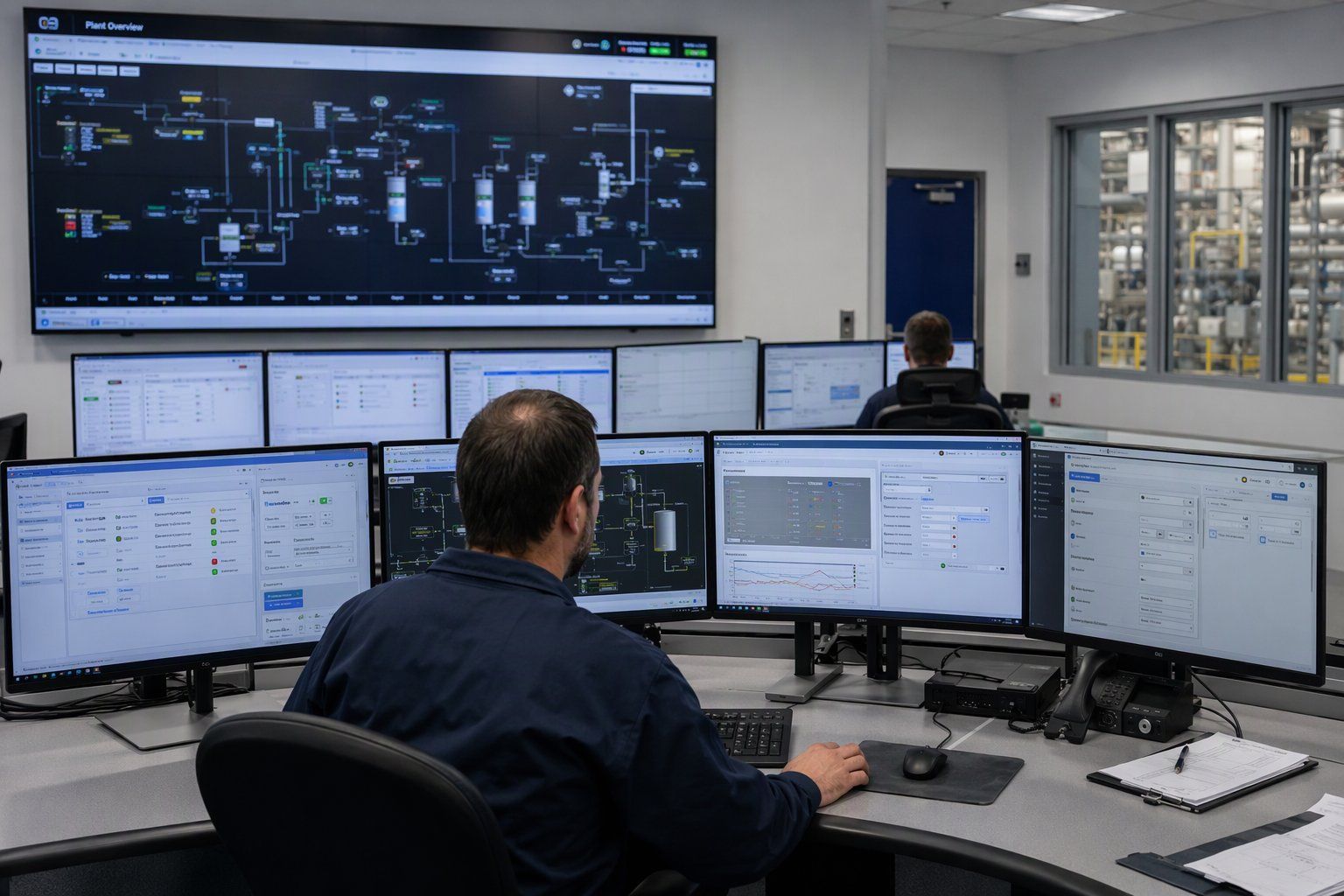
Browser access can create a false impression that the whole system now "runs in the cloud" or "runs in the browser," especially when considering legacy devices. It does not, and plant teams should be clear on this before and after the move.
The SCADA server still does the work, utilizing SCADA data to connect to PLCs and devices, collect and manage tags, evaluate alarms, log data to the historian and databases, and serve screens and configuration pages to browsers. If that server stops, browser access stops with it. Web based scada configuration does not remove the need for a properly sized, backed-up, and — where production depends on it — redundant server.
The field does not change either. PLC programs are still in the PLCs, edited with the PLC vendor's software. Drives, instruments, and networks are unchanged. A browser-configured SCADA system still depends on the same industrial network, the same switch configuration, and the same device addressing, including integration with the internet of things, it had the week before.
Performance and design discipline still matter. Moving screens and configuration to browsers does not fix an overloaded server, a noisy network, or a tag database with no naming standard. If anything, easier access makes good standards more important, because more authorized people can make changes from more places, enhancing scalability in the system's performance.
What Browser and HMI Security Considerations Matter for Automation?
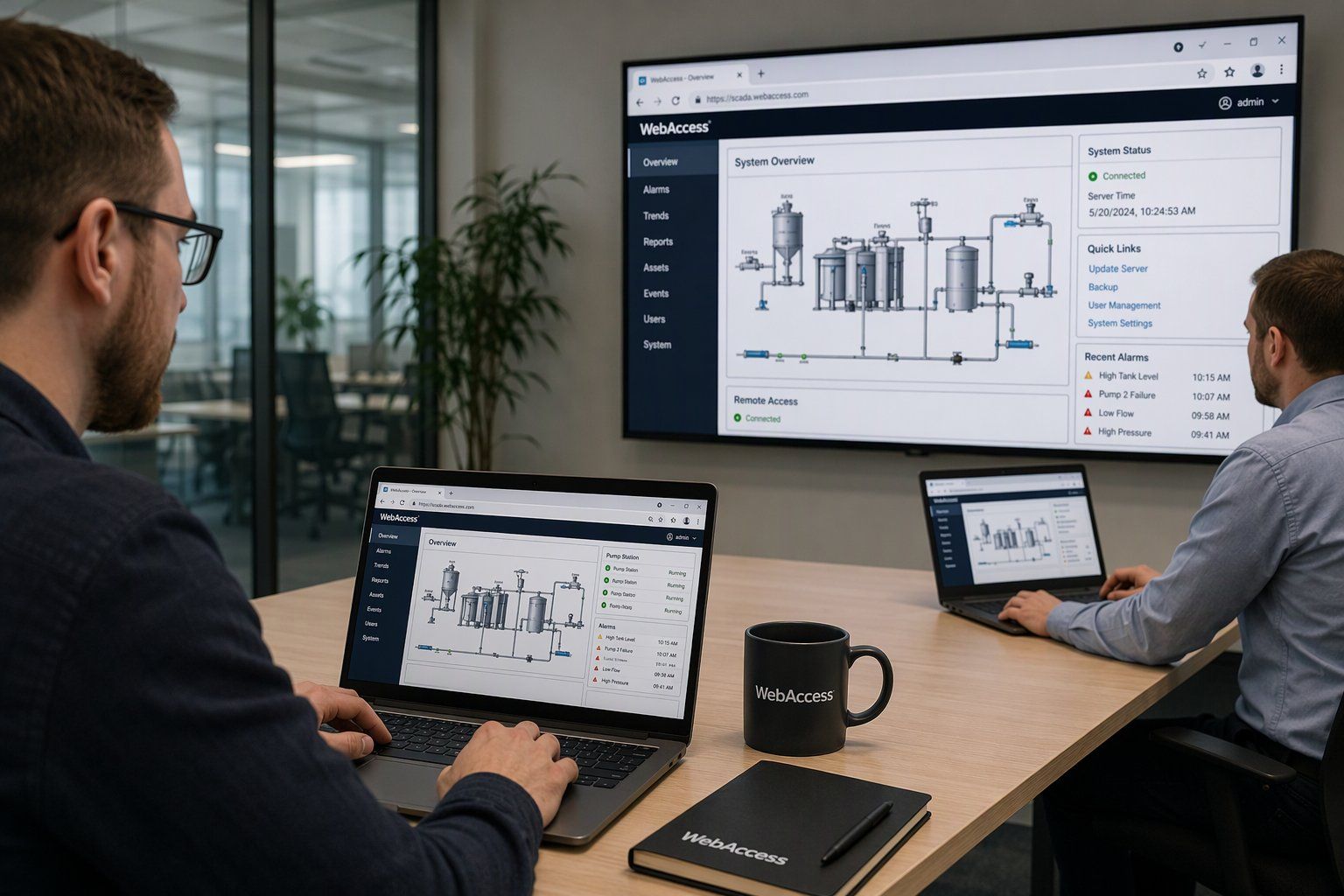
This is the section that decides whether web based scada configuration is an improvement or a new problem. A configuration interface reachable from more places must be protected in proportion to what it can do — and configuration can do a lot, especially when accessed through an internet connection.
Use HTTPS and Real User Accounts
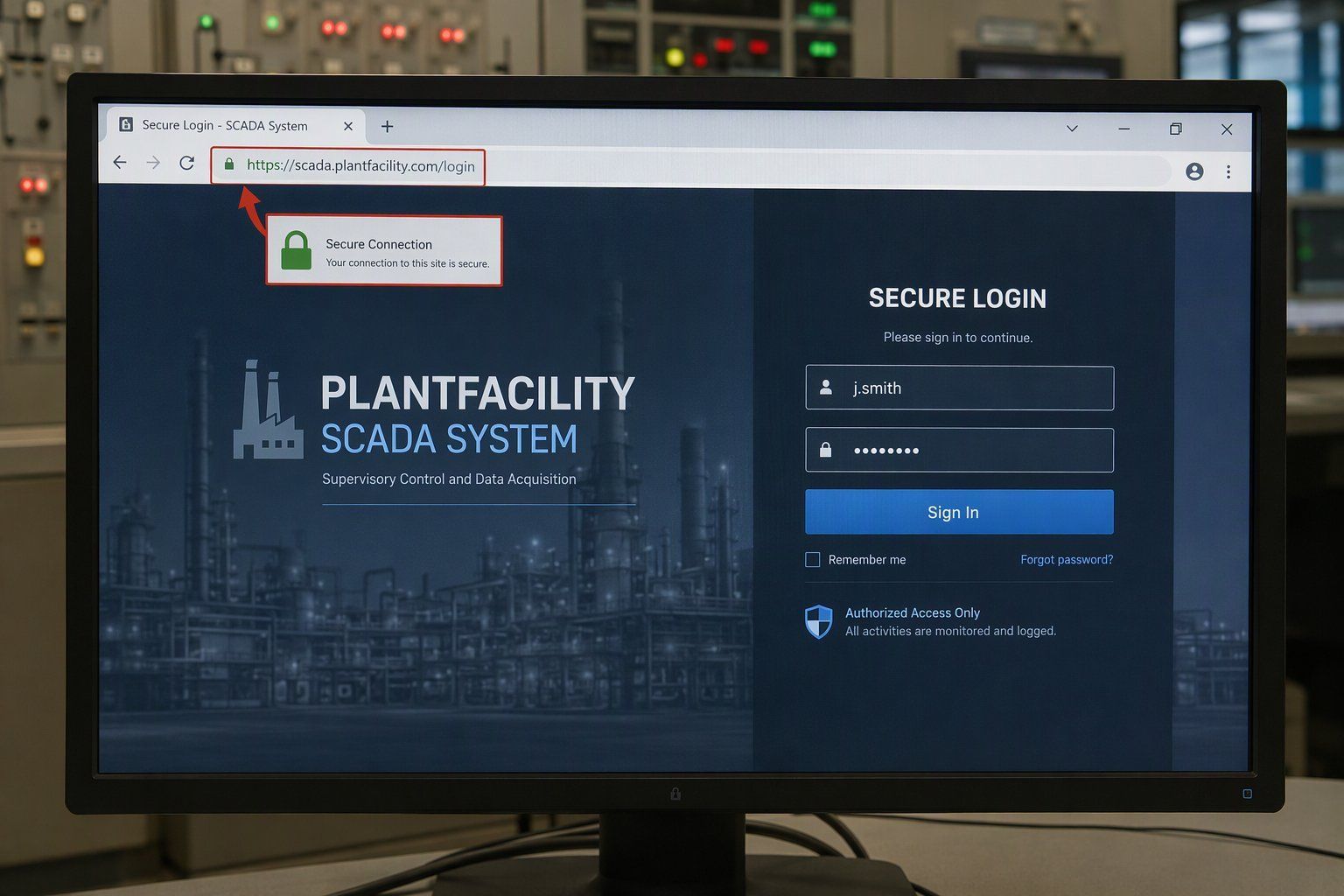
Configuration sessions should run over HTTPS, with a proper certificate the plant controls, not plain HTTP on trust. Data Security demands that every user should have an individual account. Shared logins like "engineer" with one password destroy accountability: when a setpoint or alarm limit changes, you need to know who changed it, and a shared account makes that impossible.
Set Roles by Job, Not by Convenience
Define roles before go-live. Operators may need view and acknowledge rights and nothing in configuration. Supervisors may need limited changes, such as alarm shelving under procedure. Only controls and engineering roles should be able to edit tags, drivers, and logging. Test those roles with the actual accounts people will use. Role systems often look correct in a setup screen and behave differently when a real user logs in from a real workstation.
Keep Engineering Access Off the Open Plant Network
Web based scada configuration should not mean the configuration interface is reachable from every device on a flat network, and it should never be exposed directly to the internet. Put SCADA servers and engineering access on segmented network zones, use the plant firewall and approved remote access — typically a VPN or a managed jump host — for outside support, and limit which subnets can even reach the configuration pages. The goal is simple: an office printer, a guest device, or a compromised laptop on the wrong network should not be able to load the SCADA login page at all. Additionally, ensure proper data acquisition practices are in place to maintain security and integrity.
Review this with IT before the move, not after. IT and controls often discover they have different assumptions about the same network, and browser access is exactly where those assumptions collide, especially in terms of cost.
Thin-Client Viewing for Operators and Managers
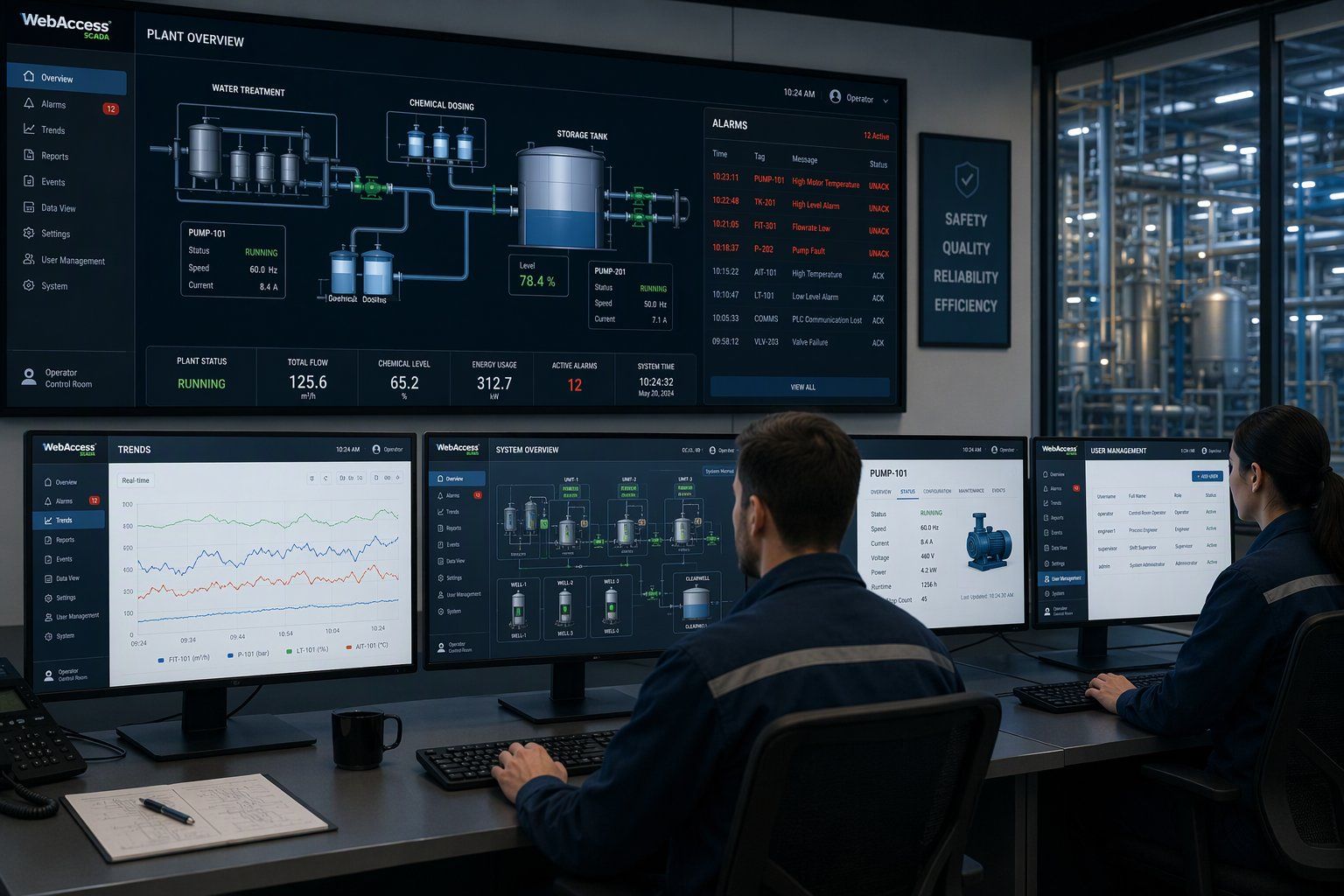
Web based scada configuration usually arrives alongside browser viewing, and viewing is where the widest group of users benefits. A thin client in this context is simply a device that needs only a browser — no SCADA runtime install — to display screens, trends, and alarms appropriate to that user's role, making it an effective SCADA solution.
For operators, the gain is flexibility. A replacement workstation or an additional display can be put into service without an install and licensing project for that one machine — though you should still confirm how your platform licenses concurrent web sessions, because viewing is not always unlimited. For supervisors and managers, browser viewing means checking production counts, downtime, or a trend from an office or a meeting room without tying up an operator station or asking someone to read numbers over the phone., especially when considering the potential benefits of utilizing various cloud providers.
Set expectations by role. A manager's browser view should generally be read-only. An operator's browser session, if it allows control actions such as starting equipment or changing setpoints, needs the same care as any operator station: clear login rules, automatic timeout where appropriate, and screens designed for the device actually being used. A dense engineering screen squeezed onto a tablet in a browser is technically accessible and practically unusable.
How This Affects Maintenance Workflow, Analytics, and Troubleshooting at 2 AM
The clearest test of any SCADA change is a breakdown on third shift.
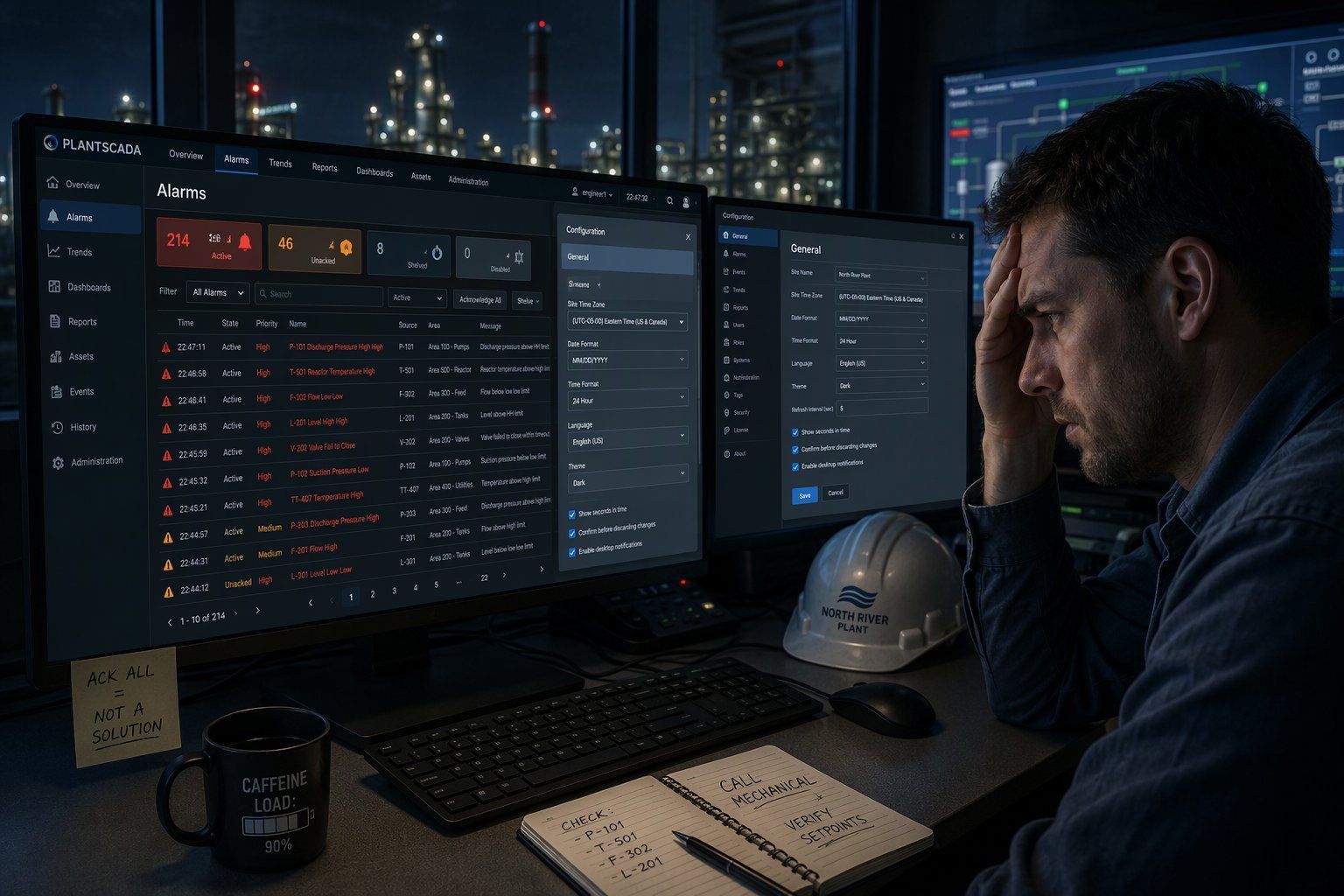
Picture a line down at 2 AM with an alarm behaving wrong — a limit set too tight after a product change, chattering and flooding the alarm list so operators cannot see the real fault. With installed-only tools, the on-call engineer either drives in, talks a tired operator through a system they are not trained to configure, or waits until morning while the line runs badly or not at all.
With web based scada configuration and proper remote access, that same engineer connects through the approved VPN, logs in with an individual engineering account, checks the tag and alarm configuration, makes the one change needed, documents it, and logs out. The change can be reviewed in the morning from the audit trail. The line is back in a fraction of the time, and nobody drove forty minutes for a five-minute fix.
Day-to-day maintenance benefits are quieter but add up. Adding a trend for a troubleshooting session, checking why a data log has a gap, or adjusting a logging rate no longer queues behind access to one PC. Work that was postponed because it was inconvenient simply gets done, and small configuration problems get fixed while they are still small.
There is a discipline requirement. Easier changes at 2 AM must still follow change control: note what changed, why, and who approved it if your procedure requires approval, and review temporary changes the next business day. A lowered alarm limit that was meant to be temporary has a way of becoming permanent and hiding a real problem for months. Browser access should speed up the documentation, not replace it.
Scalability: What to Verify Before Moving a Plant to Browser-Based Configuration
Do not move a production plant on the strength of a demonstration. Verify these items on your own system, ideally on a test server or a limited area first, as part of a planned [SCADA modernization](https://www.empoweredautomation.com/scada-modernization) rather than a weekend experiment.
1. Scope of browser tasks. List the configuration jobs your team does weekly — tag edits, alarm changes, logging changes, user management, screen edits — and confirm each one can be done in the browser on the version you will run, including OAS Version 22 if that is your platform. Note any job that still needs an installed tool.
2. Browser and device support. Test the actual browsers and workstations your plant uses, including the oldest one you still depend on. Check screen rendering, trends, and alarm lists, not just the login page.
3. Roles and audit trail. Create the real roles, log in as each one, and try to do something that role should not be allowed to do. Confirm changes are logged with user, time, and before-and-after detail you can actually retrieve.
4. Network and remote access path. Confirm which subnets can reach configuration, that HTTPS is enforced, and that remote access works end to end through your VPN or jump host — tested from outside the plant, not assumed.
5. Server load and backup. Confirm the server can serve configuration and viewing sessions on top of its normal tag, alarm, and logging load, and that server backups capture the configuration so a restore brings the browser interface back with it.
6. Fallback plan. If the browser interface is unavailable, how does the team make an urgent change? Know the answer before you need it at night, and keep server access procedures documented.
7. Training and procedures. Update the written procedures that say "go to the engineering workstation" to say who logs in, from where, and how changes are recorded. Brief operators and supervisors on what changes for them and what does not.
A phased move works well: one area or one server first, a few weeks of normal use including at least one real support event, then a review of roles, audit logs, and user feedback before expanding. That pace catches permission and network problems while the stakes are low.
You might also like